










If you enjoy ARK: Survival Evolved and want to create a private world for your friends, community, or gaming group, you may be asking, how do I host a dedicated ARK server? A dedicated server gives you much more control over your ARK world than simply playing a local or non-dedicated session.
With a dedicated ARK server, players will be able to join your game world without the need for the host to stay within the game world. You will be able to set up your own gameplay options, manage players, install mods, set server rules, and keep your world accessible to you.
Setting up a dedicated ARK server might seem hard at first, particularly if you have never set up any game servers before. Once you know the fundamentals of what is needed to set it up, it will not be that difficult anymore.
This guide explains how to host a dedicated ARK server from start to finish, including server requirements, hosting options, SteamCMD installation, configuration, networking, security, troubleshooting, and maintenance.
What Is a Dedicated ARK Server?
Before learning how to host a dedicated ARK server, it is important to understand what a dedicated server actually does.
ARK Dedicated Server is an independent server application that operates the ARK world without being tied to the player’s main ARK game client.
Unlike starting up ARK and hosting a game session through it, the dedicated server constantly operates on a computer or server.
Players can then connect to that server using the server’s address and join the same world.
A dedicated server can provide several advantages:
- Persistent game world
- More control over game settings
- Support for multiple players
- Custom server rules
- Mod support
- Better resource allocation
- Remote administration
- Ability to run the server continuously
This makes dedicated servers particularly useful for gaming communities and groups that want a persistent ARK world.

Why Host a Dedicated ARK Server?
There are several reasons players choose dedicated hosting instead of relying on a regular multiplayer session.
1. Persistent Game World
One of the biggest advantages is persistence.
A dedicated server can continue running even when the original host is not playing.
This means your friends can potentially access the world without waiting for you to launch the game.
2. Better Control
A dedicated server gives you access to many configuration options.
You can adjust settings such as:
- Player limits
- Experience multipliers
- Harvest rates
- Taming speed
- Difficulty
- Day and night cycle
- Player damage
- Dino damage
- Structure settings
This allows you to create a gameplay experience that matches your community.
3. More Players
Dedicated hardware will always allow more players to participate compared to home-hosting, depending on the hardware and the version of the game.
If you plan on making a server for large groups of people, dedicated hosting could be a more ideal choice.
4. Mod Support
Many ARK players enjoy modifying the game experience with mods.
A dedicated server can be configured to use supported mods, giving players additional maps, structures, creatures, items, and gameplay mechanics.
Always make sure the mods you use are compatible with your particular ARK version.
5. Remote Management
If your server is hosted on a remote dedicated server or VPS, you can manage it without keeping your personal gaming computer running.
This is particularly useful for communities that want a server available around the clock.
What Do You Need to Host a Dedicated ARK Server?
Before learning how to host a dedicated ARK server, you need to prepare the right environment.
The exact hardware requirements depend on your player count, map, mods, and server configuration.
However, several basic components are important.
A Dedicated Computer or Server
You need a machine capable of running the ARK dedicated server software.
You have two main choices:
Option 1: Host at Home
You can run the server on your own computer or another machine in your home.
Advantages include:
- Full hardware control
- No monthly server rental
- Complete customization
- Local management
However, your internet connection must be reliable, and your server needs to remain powered on.
Option 2: Rent a Dedicated Server
You can rent a dedicated server from a hosting provider.
This option provides:
- Data center connectivity
- Professional networking
- Better uptime
- Remote management
- Dedicated hardware
- Technical support, depending on the provider
For a 24/7 community server, renting dedicated hardware can be a convenient solution.
Stable Internet Connection
Your server needs a reliable internet connection.
If you host at home, upload bandwidth is particularly important because the server must send game data to connected players.
A poor connection can result in:
- Lag
- Disconnections
- High latency
- Unstable gameplay
Storage
The storage capacity requirements for ARK server files and game content are high. Using an SSD or NVMe drive helps improve the speed of starting up the server and loading files when compared to HDDs.
RAM
ARK server data files take up considerable hard disk space, particularly if there are several maps or mods used.
The memory requirements are greatly influenced by the map, number of players, and mods.
Even an empty server will need less RAM than a server with many players and mods.
It is recommended to look up the memory requirements before buying the hardware.
How Do I Host a Dedicated ARK Server?
Now let’s move to the actual setup process.
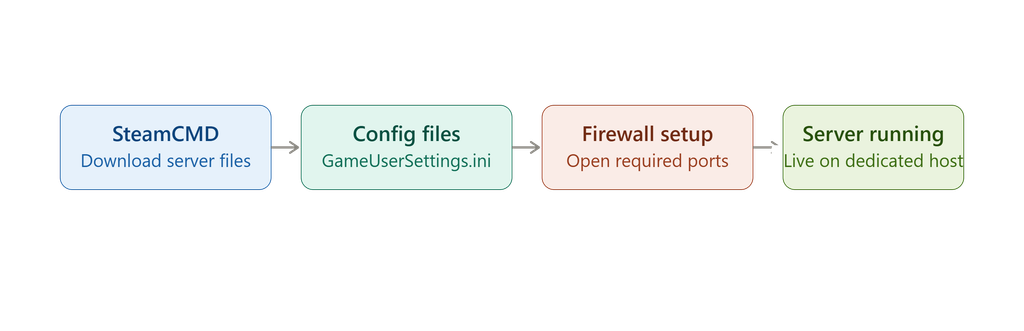
There are several ways to host an ARK server, but one common approach for PC servers is to use SteamCMD to download and update the dedicated server files.
Step 1: Choose Your Server Platform
First, decide where your server will run.
You can use:
- Windows Server
- Windows desktop
- Linux server
- Dedicated physical server
- VPS, if its resources are sufficient
- Game server hosting
For beginners, Windows can be easier because of its familiar graphical interface.
Linux can be a strong option for experienced administrators who prefer command-line management.
Step 2: Install SteamCMD
SteamCMD is a command-line tool from Valve that can be used to download and update dedicated server applications.
Create a dedicated folder for SteamCMD.
For example:
C:\steamcmd
Download and extract SteamCMD into that directory.
When SteamCMD starts, it will connect to Steam and allow you to download supported server applications.
For ARK: Survival Evolved, you can use the appropriate Steam application ID for the dedicated server.
A typical SteamCMD installation workflow looks like this:
login anonymous
force_install_dir C:\ARKServer
app_update 376030 validate
quit
The exact installation commands can change over time, so always verify the current server installation method for the ARK version you are using.
Step 3: Download the ARK Server Files
After SteamCMD is installed, create a separate directory for your ARK server.
For example:
C:\ARKServer
Use SteamCMD to download the dedicated server files into that folder.
The download may take some time because the server package can be large.
Once the installation is complete, check that the server files were downloaded correctly.
You should see folders and files related to the ARK server installation.
Step 4: Create a Server Startup Script
A startup script makes it easier to launch your server.
On Windows, you can create a .bat file.
A basic example could look similar to:
ShooterGameServer.exe TheIsland?listen?SessionName=MyARKServer
You can customize the server name and other settings.
For example:
ShooterGameServer.exe TheIsland?listen?SessionName=MyFriendsARK
The exact startup parameters depend on your desired configuration and ARK version.
Step 5: Configure the Server
Server configuration is one of the most important parts of setting up your ARK world.
ARK provides configuration files where you can change gameplay behavior.
Two important configuration files are:
GameUserSettings.ini
and
Game.ini
These files can contain settings for:
- Server name
- Player limits
- Difficulty
- Harvest multiplier
- Experience multiplier
- Taming multiplier
- Structure settings
- Player settings
- Dino settings
- Server passwords
- Admin configuration
Always create a backup before making major configuration changes.
Step 6: Set the Server Name
Your server name helps players identify your world.
For example:
My Private ARK Server
or:
Tarek’s Survival World
A clear server name makes it easier for friends or community members to find the correct server.
You can also include information about:
- Map
- Gameplay style
- PvE or PvP
- Modded or vanilla
- Community rules
For example:
My ARK Server | PvE | The Island | Friendly
Step 7: Configure Player Limits
You can configure the maximum number of players your server should support.
The appropriate number depends on your hardware and network.
For a private server with friends, you may only need a small player limit.
For a public community server, you may need substantially more resources.
Do not set the player limit higher than your hardware and network can reasonably support.
Step 8: Configure Gameplay Multipliers
One of the fun parts of running a dedicated ARK server is customizing gameplay.
You can adjust settings such as:
Harvesting
Increase the harvesting multiplier to allow players to collect resources faster.
Taming
Increasing taming speed can reduce the amount of time required to tame creatures.
Experience
You can increase or decrease XP rates depending on your desired gameplay style.
Breeding
Breeding-related settings can be modified to create faster or slower breeding cycles.
Difficulty
You can customize difficulty settings depending on how challenging you want the server to be.
Avoid changing too many settings at once. Make one or two changes, test the server, and then continue adjusting it.
Step 9: Configure the Network
If players outside your local network need to connect, networking configuration is extremely important.
A home-hosted server may require port forwarding on your router.
Common ARK server ports include:
- UDP 7777
- UDP 7778
- UDP 27015
However, port requirements can vary depending on the server configuration and ARK version.
You should verify the correct ports for your setup before opening them.
If you use a rented dedicated server, your hosting provider may already configure the network environment for you.
Step 10: Configure Your Firewall
Firewalls in the operating system might block any connection from outside.
You might need to set up firewall rules for the required ARK server traffic.
Use only the ports you need.
Do not shut down your entire firewall just to make the server available.
A properly set up firewall is an extra safety measure.
Step 11: Start the Dedicated Server
With everything set up, run your server through the startup script.
There may be a command window that opens up which shows startup details of the server.
Startup for the very first time may take some time.
Make sure to wait until the server has loaded the map and is ready for connections.
Do not close the command window immediately unless you are using some sort of service or management system for your server.
Step 12: Find Your Server
After the server is running, launch ARK from another computer.
Go to the multiplayer server browser and search for the server name.
If your server is configured correctly, it should appear in the appropriate server list.
For private testing, you can also connect using the server’s address and port when supported by your setup.
If the server does not appear immediately, give the server browser some time and verify your network and firewall configuration.
How to Add Mods to a Dedicated ARK Server
Mods can significantly change your ARK experience.
Before installing a mod, check:
- Whether it supports your ARK version
- Whether it is compatible with other installed mods
- Whether all players need the mod
- Whether the mod is actively maintained
You typically specify the required mod identifiers in the server configuration.
For example, a configuration may contain a list similar to:
ActiveMods=123456789,987654321
The actual IDs should be replaced with the IDs of the mods you want to use.
After changing mod settings, restart the server.
Remember that adding many mods can increase memory usage and server startup time.
How to Manage ARK Server Admins
Server administrators need tools to manage players and protect the game world.
You can configure an administrator password and use supported admin commands.
Admin tools can allow authorized administrators to:
- Kick players
- Ban players
- Change settings
- Manage creatures
- Troubleshoot gameplay
- Perform administrative actions
Never share your administrator password publicly.
Use a strong password and give administrative access only to trusted people.
Dedicated ARK Server Security
Security should not be ignored just because you are running a game server.
A dedicated server is still an internet-connected computer.
Use Strong Passwords
Avoid simple passwords such as:
123456
or:
password
Use a long, unique password for administrative access.
Keep the Server Updated
Regular updates can provide:
- Bug fixes
- Security improvements
- Compatibility improvements
- New content
Use the appropriate update process for your ARK server.
Backup Your Server
Backups are extremely important.
Your server may contain many hours of player progress.
Back up important files such as:
- Save files
- Configuration files
- Server settings
- Custom scripts
Store important backups separately from the main server whenever possible.
How to Improve Dedicated ARK Server Performance
If your server starts lagging, several factors may be responsible.
Monitor CPU Usage
High CPU usage can affect server responsiveness.
Check which processes are consuming CPU resources.
Monitor RAM
Insufficient RAM can cause performance problems.
Heavy mods and larger player populations can increase memory usage.
Use SSD or NVMe Storage
Fast storage can improve loading and save operations.
Reduce Unnecessary Mods
Every additional mod can increase server complexity.
If your server has performance issues, temporarily disable unnecessary mods and test again.
Optimize Player Count
More players generally create more server activity.
If your hardware struggles with a high player count, reducing the maximum number of players may improve stability.
Common Problems When Hosting an ARK Server
Even after following the setup process, you may encounter problems.
Server Does Not Appear
Possible causes include:
- Incorrect ports
- Firewall blocking traffic
- Incorrect server settings
- Server not fully started
- Network configuration problems
Check the server logs and verify your networking configuration.
Players Cannot Connect
Check:
- Server address
- Port configuration
- Firewall rules
- Router port forwarding
- Server status
If you are hosting at home, also check whether your ISP uses CGNAT, because this can affect inbound connections.
Server Crashes
Possible causes include:
- Insufficient RAM
- Outdated server files
- Mod conflicts
- Configuration errors
- Hardware problems
Remove recently added mods or configuration changes to identify the problem.
High Ping
High latency may be caused by:
- Geographic distance
- Poor network quality
- Server overload
- Internet congestion
Choosing a data center closer to most of your players can help reduce latency.
Home Server vs Dedicated Server Hosting
If you are deciding where to host your ARK server, compare the two approaches.
| Feature | Home Server | Dedicated Server |
| Hardware control | High | High |
| Monthly cost | Lower if existing hardware is used | Higher |
| Internet reliability | Depends on ISP | Usually strong |
| 24/7 availability | Requires your own power/network | Designed for continuous operation |
| Maintenance | Your responsibility | Provider may help |
| Physical security | Your responsibility | Data center |
| Scalability | Hardware dependent | Provider dependent |
| Remote management | Possible | Usually available |
A home server can be excellent for a small group.
A rented dedicated server is often more convenient for communities that want professional infrastructure and continuous availability.
How Much Does It Cost to Host an ARK Server?
The cost depends on your hosting method.
If you already have a suitable computer, you may mainly pay for electricity and internet service.
A rented server will have a monthly cost based on:
- CPU
- RAM
- Storage
- Network bandwidth
- Data center location
- Management
- Backup services
- DDoS protection
Game-server hosting providers may also offer ARK-specific plans with simpler management.
Compare the total monthly cost rather than looking only at the advertised starting price.
Tips for Running a Successful ARK Server
Once you know how to host a dedicated ARK server, maintaining the server becomes the next priority.
Here are some useful tips.
Keep Regular Backups
Automate backups whenever possible.
Monitor Performance
Watch CPU, RAM, storage, and network usage.
Keep Players Informed
If you plan maintenance or server restarts, inform your community.
Avoid Excessive Mods
Only install mods that provide meaningful value.
Create Clear Rules
If your server is public, establish rules covering:
- PvP behavior
- Raiding
- Building
- Chat
- Admin abuse
- Cheating
Restart Periodically
Depending on your setup, scheduled restarts can help maintain stability.
Keep Documentation
Record important information such as:
- Server settings
- Admin credentials location
- Backup location
- Startup commands
- Installed mods
- Network configuration
Never store sensitive passwords in publicly accessible documentation.
Frequently Asked Questions
Can I host a dedicated ARK server on my own PC?
Yes. You can run a dedicated server on a suitable computer, provided that your hardware, operating system, internet connection, and network configuration meet the requirements.
Do I need a dedicated server to play ARK with friends?
No. You can use other multiplayer options. However, a dedicated server provides a persistent world and more control.
Is dedicated ARK server hosting expensive?
It depends on your hardware requirements and hosting provider. Small configurations can be relatively affordable, while high-performance servers with many players and mods can cost more.
Can I install mods on a dedicated ARK server?
Yes, supported ARK server configurations can use mods. Make sure the mods are compatible with your version and with each other.
Can I run an ARK server 24/7?
Yes. A dedicated server can run continuously as long as the machine and network remain available.
Is Linux good for an ARK dedicated server?
Linux can be a good choice for experienced administrators who are comfortable with command-line server management. Windows may be easier for beginners.
How much RAM does an ARK server need?
There isn’t one number that will suit all servers. It depends on the ARK version, the map you want to use, how many people play at once, the mods, and the configuration.
Final Thoughts
If you were searching for how to host a dedicated ARK server, the process is easier once you break it into individual steps.
First, decide on which hardware will run the server. It can be either the PC at your place or rented professional server hardware. Second, install the necessary software, download the dedicated server files of ARK, configure settings, your network, a nd firewall, and launch the server.
When the server is launched, it is time to take care of its maintenance. Update the server, monitor its performance, perform regular backups, secure administrative access, and manage mods properly.
If a group of friends wants to play ARK together, it will suffice just to set up a home server. However, when it comes to a bigger group requiring reliable uptime and proper networking, renting professional hardware for the server might become more beneficial.
The key is to provide an adequate amount of resources depending on the number of players. Provided the proper setup and maintenance, you will have a good ARK world to survive in and enjoy.




2 thoughts on “How Do I Host a Dedicated ARK Server? Complete Step-by-Step Guide”