



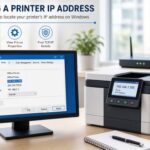

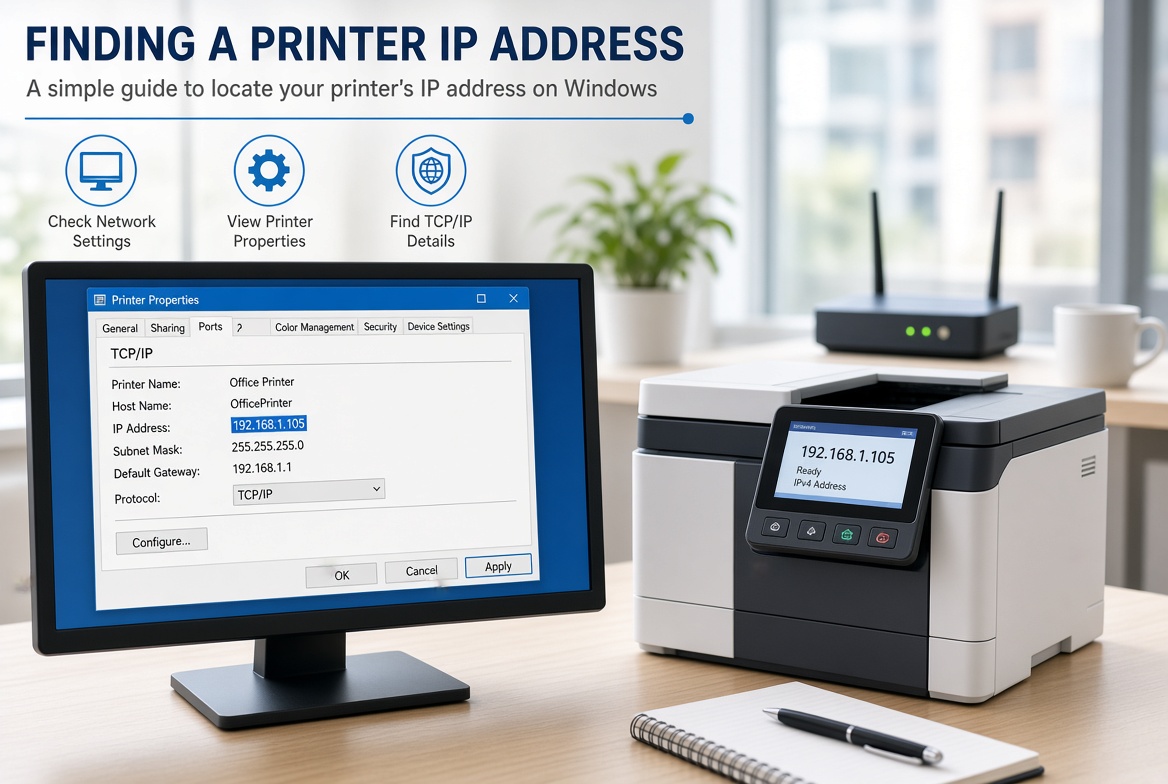
The IP address of your printer might need to be found if you want to connect your printer to a computer or if you have any problems connecting through a network. There are many easy ways to find the IP address if you use a computer running on Windows or Mac operating system, a Wi-Fi printer, or an Ethernet printer.
If you are wondering how to lookup printer IP address, you do not always need advanced networking knowledge. Most modern printers provide the IP address through their control panel, network settings, configuration page, or a connected computer. You can also find it through your router in many cases.
This guide explains several reliable methods to find a printer IP address and provides troubleshooting tips if the address is difficult to locate.
What Is a Printer IP Address?
A printer IP address is a specific network address allocated to a particular printer that is connected to the same local network. With the use of a printer IP address, communication is possible between the computer and the printer.
For example, a printer might have an address such as:
192.168.1.25
The exact address depends on your network and router configuration.
A network printer can usually connect through:
- Wi-Fi
- Ethernet cable
- Office network
- Home network
- Wireless router
- Print server
When your computer sends a print job, the network uses the printer’s IP address to identify where that job should go.
Knowing the printer IP address can also be useful when:
- Adding a printer manually
- Troubleshooting printing problems
- Accessing printer settings
- Installing printer software
- Checking network connectivity
- Configuring a printer on multiple computers
- Changing network printer settings
Why Do You Need to Find Your Printer IP Address?
Here are some of the reasons why you might want to know the IP address of your printer.
A typical scenario in which you will be required to have the IP address of your printer includes attaching the printer to the computer. While many printers are easily detected by Windows, there are occasions when automatic detection fails, and in such cases, the printer will be added based on its IP address.
An IP address is also helpful in diagnosing issues related to communication between your computer and the printer.
In organizations and business environments, printer IP addresses come in handy since network administrators usually have to manage various printers at once.
How to Lookup Printer IP Address From the Printer
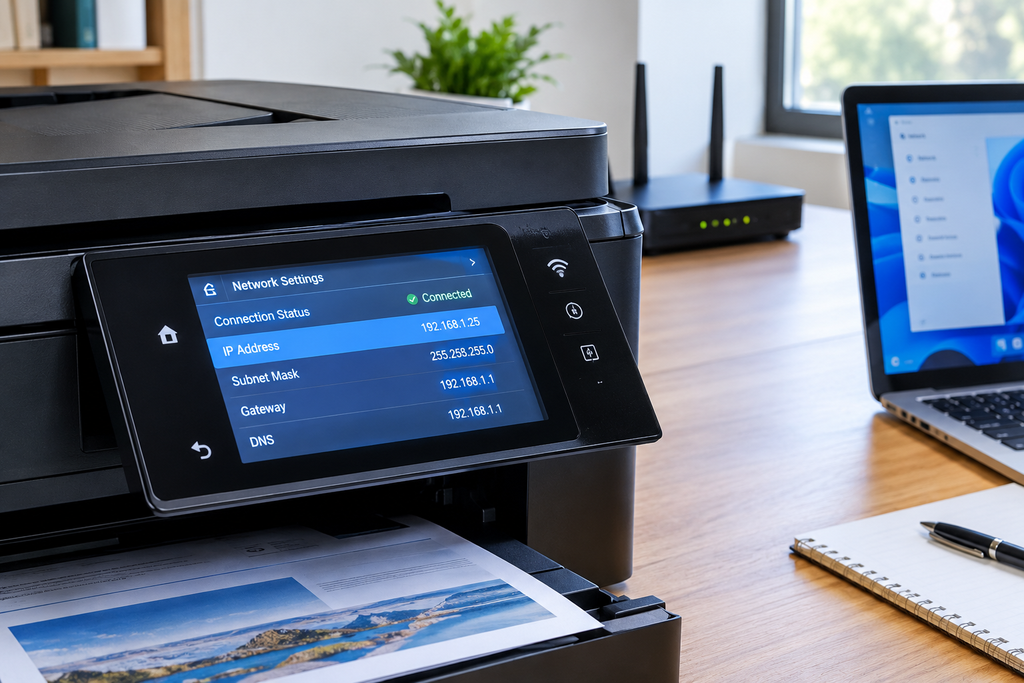
One of the simplest ways of doing it is through the printer itself.
A lot of current network printers are equipped with a screen that will give you access to network settings.
Of course, menu names may differ depending on the manufacturer and the model of the printer.
Step 1: Turn On the Printer
Make sure your printer is powered on and connected to your Wi-Fi or Ethernet network.
Step 2: Open Network Settings
Look for an option such as:
- Settings
- Network
- Network Settings
- Wi-Fi Settings
- Wireless Settings
- TCP/IP
- Network Information
Step 3: Find the IP Address
Look for an entry labeled:
IP Address
You may see something similar to:
192.168.1.25
or:
10.0.0.45
Write down the address because you can use it when configuring the printer on your computer.
Step 4: Confirm the Connection
Make sure the printer’s network status says something like:
- Connected
- Active
- Ready
- Online
If the printer has no IP address, it may not be connected to your network.
How to Lookup Printer IP Address on Windows
Windows provides several ways to find the IP address of a network printer.
If your printer is already installed on your Windows computer, you can often find its network information through the printer properties.
Method 1: Using Windows Settings
Step 1: Open Settings
Press:
Windows + I
This opens Windows Settings.
Step 2: Open Printers
Depending on your version of Windows, go to:
Bluetooth & devices → Printers & scanners
Step 3: Select Your Printer
Find your printer in the list and click on it.
Step 4: Open Printer Properties
Look for an option such as:
Printer properties
Be careful not to confuse this with the basic Windows printer preferences.
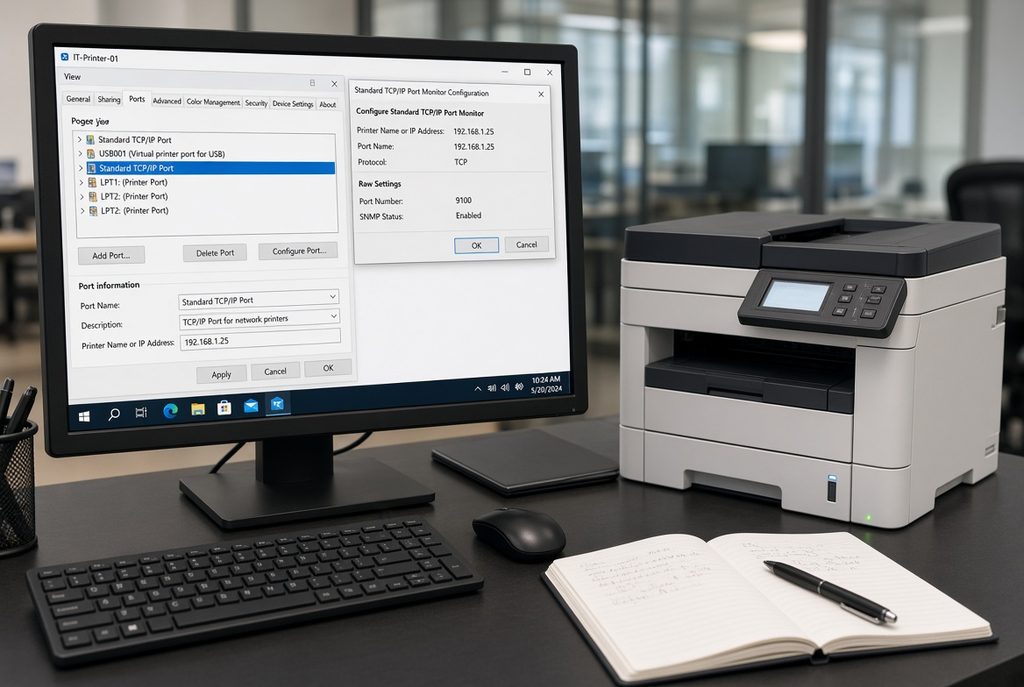
Step 5: Check the Ports
Open the Ports tab.
You may see a port associated with your printer.
If the printer is configured using a standard TCP/IP port, the IP address may appear in the port information.
For example:
192.168.1.25
This is one of the easiest ways to determine the IP address of a printer already configured on Windows.
How to Find Printer IP Address Using Control Panel
Another method is using the traditional Windows Control Panel.
Step 1: Open Control Panel
Press the Windows key and search for:
Control Panel
Open it.
Step 2: Select Devices and Printers
Choose:
Hardware and Sound → Devices and Printers
Step 3: Find Your Printer
Locate the printer you want to check.
Step 4: Open Printer Properties
Right-click the printer and select:
Printer properties
Step 5: Open the Ports Tab
Select the Ports tab.
Look for the printer’s active network port.
If the printer uses a TCP/IP connection, the IP address may be visible there.
How to Lookup Printer IP Address Using Command Prompt
Windows users can also use Command Prompt for network troubleshooting.
However, Command Prompt may not always directly show the printer’s IP address unless the printer is discoverable through the network.
You can first check your computer’s network information.
Open Command Prompt and type:
ipconfig
Press Enter.
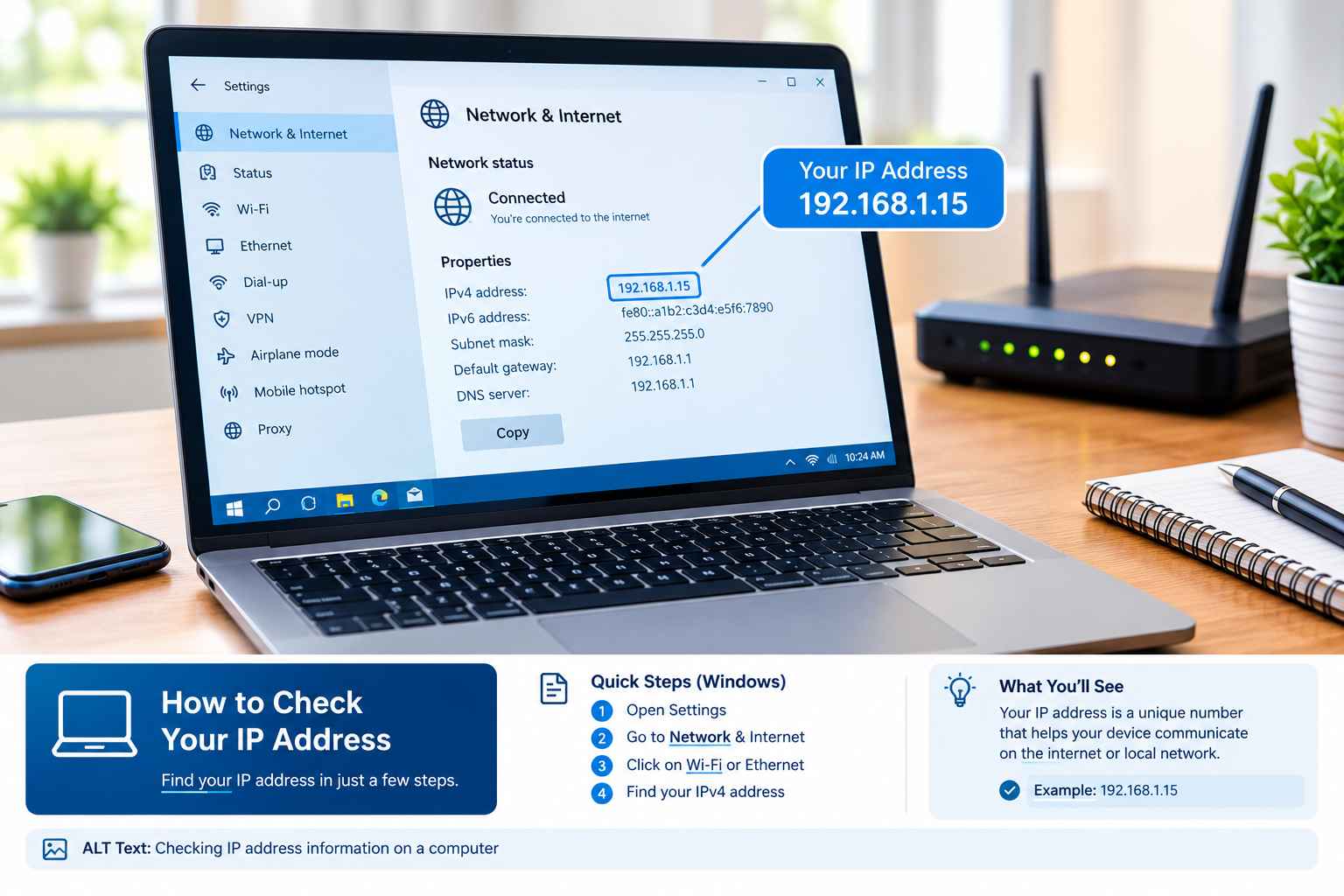
This shows your computer’s network information, including the IPv4 address and default gateway.
For example:
IPv4 Address: 192.168.1.10
Default Gateway: 192.168.1.1
The printer will normally have another address within the same network range, such as:
192.168.1.25
You can then use network discovery or your router’s device list to identify the printer.
How to Find Printer IP Address on a Mac
Mac users can also find the IP address of a network printer through system settings.
Step 1: Open System Settings
Click the Apple menu and open:
System Settings
Step 2: Select Printers & Scanners
Find:
Printers & Scanners
Step 3: Select the Printer
Click the printer you want to inspect.
Depending on your macOS version and printer configuration, network information may be displayed in the printer details.
Some printers may also expose their IP address through the printer’s web interface or configuration utility.
How to Lookup Printer IP Address From the Router
If you cannot find the IP address on the printer itself, checking your router is another useful method.
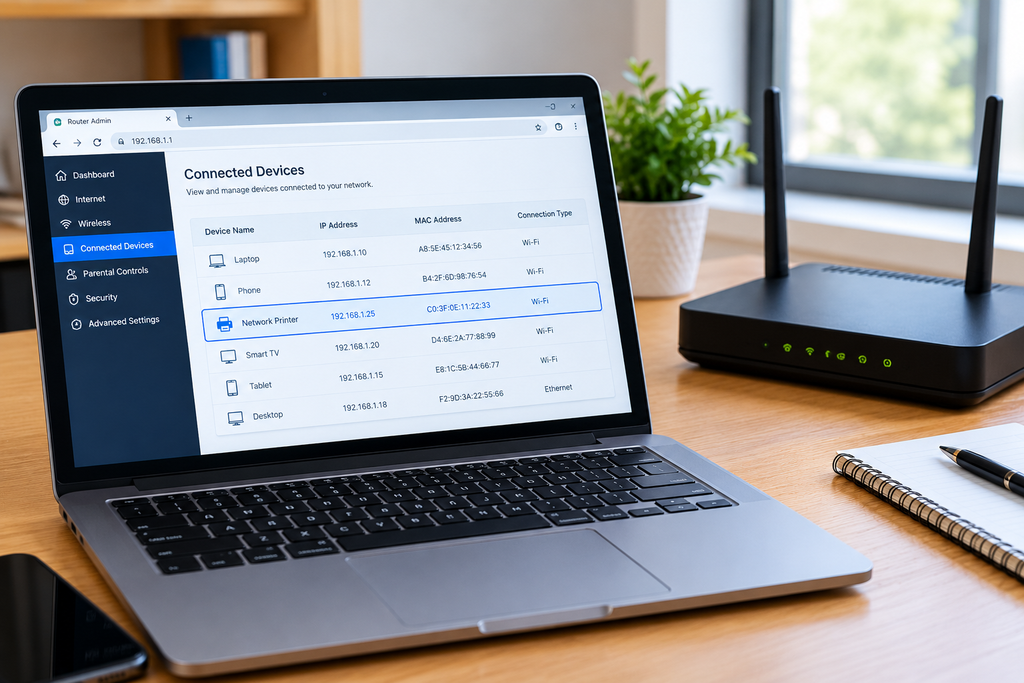
Your router maintains a list of devices connected to your network.
The list may be called:
- Connected Devices
- Client List
- DHCP Clients
- Device List
- Network Map
- Attached Devices
- LAN Devices
Step 1: Log Into Your Router
Open a web browser and enter your router’s local gateway address.
Common examples include:
192.168.1.1
or:
192.168.0.1
The exact address depends on your router.
Step 2: Sign In
Enter the router’s administrator username and password.
Step 3: Find Connected Devices
Look for the connected device list.
Step 4: Identify the Printer
Search for a device with the printer manufacturer’s name, model name, or recognizable hostname.
You may see something like:
HP Printer — 192.168.1.25
The address listed next to the printer is its current local IP address
How to Lookup Printer IP Address by Printing a Network Configuration Page
Many printers can print a network configuration or network status page.
This page can contain useful information such as:
- IP address
- Subnet mask
- Default gateway
- MAC address
- Wi-Fi status
- Network name
- Connection type
- DNS information
The exact process differs by printer manufacturer.
Look through the printer menu for options such as:
Network Configuration Page
Network Status Page
Wireless Report
Configuration Report
Print Network Information
Once printed, look for a section containing TCP/IP information.
You may see:
IPv4 Address: 192.168.1.25
Subnet Mask: 255.255.255.0
Gateway: 192.168.1.1
The IPv4 address is usually the printer’s local network address.
How to Find Printer IP Address Through the Printer Web Interface
Some network printers have a built-in web interface.
Once you know the printer’s IP address, you can enter it into a browser.
For example:
http://192.168.1.25
If the printer supports a web management interface, this can open a printer settings page.
The interface may allow you to view:
- Printer status
- Network settings
- Firmware information
- Paper status
- Ink or toner information
- Connection details
- Security settings
You may need administrator credentials to change certain settings.
Static vs Dynamic Printer IP Addresses
When learning how to lookup printer IP address, it is useful to understand that printer IP addresses can be dynamic or static.
Dynamic IP Address
A dynamic IP address is usually assigned automatically by your router through DHCP.
For example, your printer may receive:
192.168.1.25
Later, the router could assign another address such as:
192.168.1.30
This can sometimes create problems if computers are configured to connect to the old address.
Static IP Address
A static IP address is manually configured and remains the same unless someone changes it.
For business networks, using a consistent address can make printer management easier.
Another common solution is a DHCP reservation, where the router consistently assigns the same IP address to a particular printer.
What If You Cannot Find the Printer IP Address?
Sometimes the printer does not show an IP address.
There are several possible reasons.
1. Printer Is Not Connected to Wi-Fi
Check the printer’s wireless settings and make sure it is connected to the correct network.
2. Ethernet Cable Is Disconnected
If the printer uses Ethernet, check both ends of the cable.
3. Printer Is Connected to Another Network
Your computer and printer should normally be connected to the same local network when using a typical home or office setup.
4. Printer Has No DHCP Address
The printer may have failed to receive an IP address from the router.
Restarting the printer and network equipment can sometimes resolve this.
5. Wi-Fi Signal Is Weak
A printer located far from the router may have difficulty maintaining a reliable wireless connection.
How to Check If the Printer IP Address Works
After finding the IP address, you can test whether your computer can communicate with the printer.
Open Command Prompt and type:
ping 192.168.1.25
Replace 192.168.1.25 with your printer’s actual IP address.
If the printer responds, you may see messages such as:
Reply from 192.168.1.25
This indicates that your computer can communicate with that IP address.
If you receive:
Request timed out
there may be a connectivity problem, firewall issue, incorrect IP address, or the printer may be offline.
How to Add a Printer Using Its IP Address
Once you know the printer’s IP address, you can manually add it to Windows.
Go to:
Settings → Bluetooth & devices → Printers & scanners
Select:
Add device
If Windows does not automatically find the printer, look for an option to add it manually.
Depending on the Windows version, you may be able to select:
Add a printer using an IP address or hostname
Enter the printer’s IP address.
For example:
192.168.1.25
Windows will then attempt to communicate with the printer.
You may need the correct printer driver if Windows cannot automatically identify the model.
Printer IP Address vs Computer IP Address
It is important not to confuse your computer’s IP address with the printer’s IP address.
For example:
Computer:
192.168.1.10
Printer:
192.168.1.25
Router:
192.168.1.1
These are different devices, but they can belong to the same local network.
The first three groups are often the same on a typical home network, although network configurations can vary.
Is a Printer IP Address the Same as a MAC Address?
No.
An IP address and MAC address serve different purposes.
An IP address identifies a device’s network address and can change depending on the network configuration.
A MAC address is a hardware-level network identifier associated with the printer’s network interface.
A printer’s network configuration page may display both.
For example:
IP Address: 192.168.1.25
MAC Address: XX:XX:XX:XX:XX:XX
You should use the IP address when you need to connect to the printer over the network
Common Printer IP Address Problems
Finding the IP address is only the first step. Sometimes the printer may still fail to print.
Here are some common problems.
Wrong IP Address
If the printer received a new IP address from the router, Windows may still be trying to communicate with the old address.
Check the printer’s current network information.
Printer and Computer Are on Different Networks
For example, your computer could be connected to one Wi-Fi network while the printer is connected to another.
Make sure both devices are connected to the appropriate network.
VPN Connection
A VPN can sometimes affect access to local network devices depending on its configuration.
If the printer works normally without the VPN but stops working while it is active, the VPN configuration may be affecting local network access.
Firewall Restrictions
Security software or firewall settings can sometimes interfere with network printer communication.
Check your network and firewall configuration carefully before changing security settings.
Tips for Managing a Network Printer
If you frequently use a network printer, a few practices can make future troubleshooting easier.
Keep a Record of the Printer IP
Write down the printer’s current IP address and model.
Use a DHCP Reservation
For frequently used printers, a router-based DHCP reservation can help keep the printer on the same address.
Keep Printer Firmware Updated
Printer manufacturers sometimes release firmware updates that improve security, compatibility, and network reliability.
Use a Strong Wi-Fi Connection
Place wireless printers where they have a reliable connection to the router.
Avoid Unnecessary Network Changes
Changing your router, Wi-Fi network, or subnet can affect how computers communicate with network printers.
Frequently Asked Questions
How do I look up a printer IP address?
You can find it through the printer’s network settings, a printed network configuration page, Windows printer properties, your router’s connected-device list, or the printer’s network software.
Where can I find my printer’s IP address?
Check the printer’s display under Network or Wi-Fi settings. You can also print a network configuration page or check your router’s connected-device list.
Can I find my printer IP address from Windows?
Yes. Open Printers & scanners, select the printer, open its printer properties, and check the Ports tab. A TCP/IP port may display the printer’s network address.
Can I find a printer IP address without a computer?
Yes. Many printers display their IP address through their built-in control panel. You can also print a network configuration page directly from the printer.
Why does my printer IP address keep changing?
Your printer may be receiving a dynamic IP address from the router through DHCP. A DHCP reservation can help the printer consistently receive the same address.
Can I use the printer IP address in a web browser?
If the printer has a built-in web management interface, entering its IP address into a browser may open its configuration page.
What does a printer IP address look like?
On many home networks, a local IPv4 printer address looks similar to:
192.168.1.25
However, the exact address depends on your network configuration.
Final Thoughts
Learning how to lookup printer IP address is useful for both home users and office network administrators. The easiest method is usually checking the printer’s built-in network settings or printing a network configuration page. If those options are unavailable, Windows printer properties and the router’s connected-device list provide additional ways to identify the address.
Once you find the printer’s IP address, you can use it to manually add the printer, troubleshoot network communication, access supported printer management pages, and identify the printer on your local network.
If your printer frequently changes its IP address, consider using a DHCP reservation through your router so the printer can consistently receive the same local address. This can make network printing more reliable and simplify future troubleshooting.