





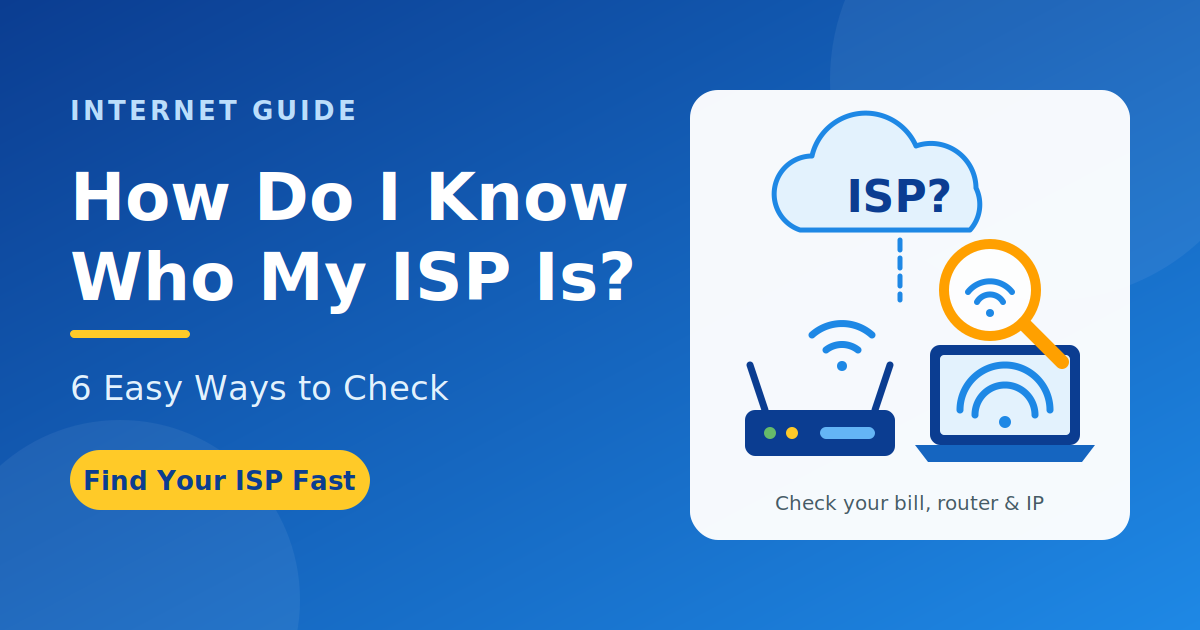
If you have ever wondered, “How do I know who my ISP is?”, you are not alone. Your Internet Service Provider, commonly called an ISP, is the company that connects your home, office, or mobile device to the internet. Knowing your ISP can be useful when troubleshooting slow internet, checking your internet plan, contacting customer support, investigating connection problems, or understanding your network.
Fortunately, it is normally quite easy to find your ISP. There is no requirement for specialized technical knowledge, complex hardware, or difficult software tools. In many instances, you should be able to figure out your ISP in only a couple of minutes using either your computer, phone, router, or an IP lookup site online.
The following is a guide that details a number of simple techniques for helping you to find your ISP. This guide also covers what an ISP is, why your ISP is important, identifying your ISP through an IP address, and what to do if things seem different than expected.
What Is an ISP?
ISP stands for Internet Service Provider. It is the company or organization that provides your connection to the internet.
When you connect your computer, smartphone, smart TV, or another device to the internet, your traffic normally passes through your ISP’s network before reaching websites and online services.
Common services provided by ISPs can include:
- Home broadband internet
- Fiber internet
- Cable internet
- DSL internet
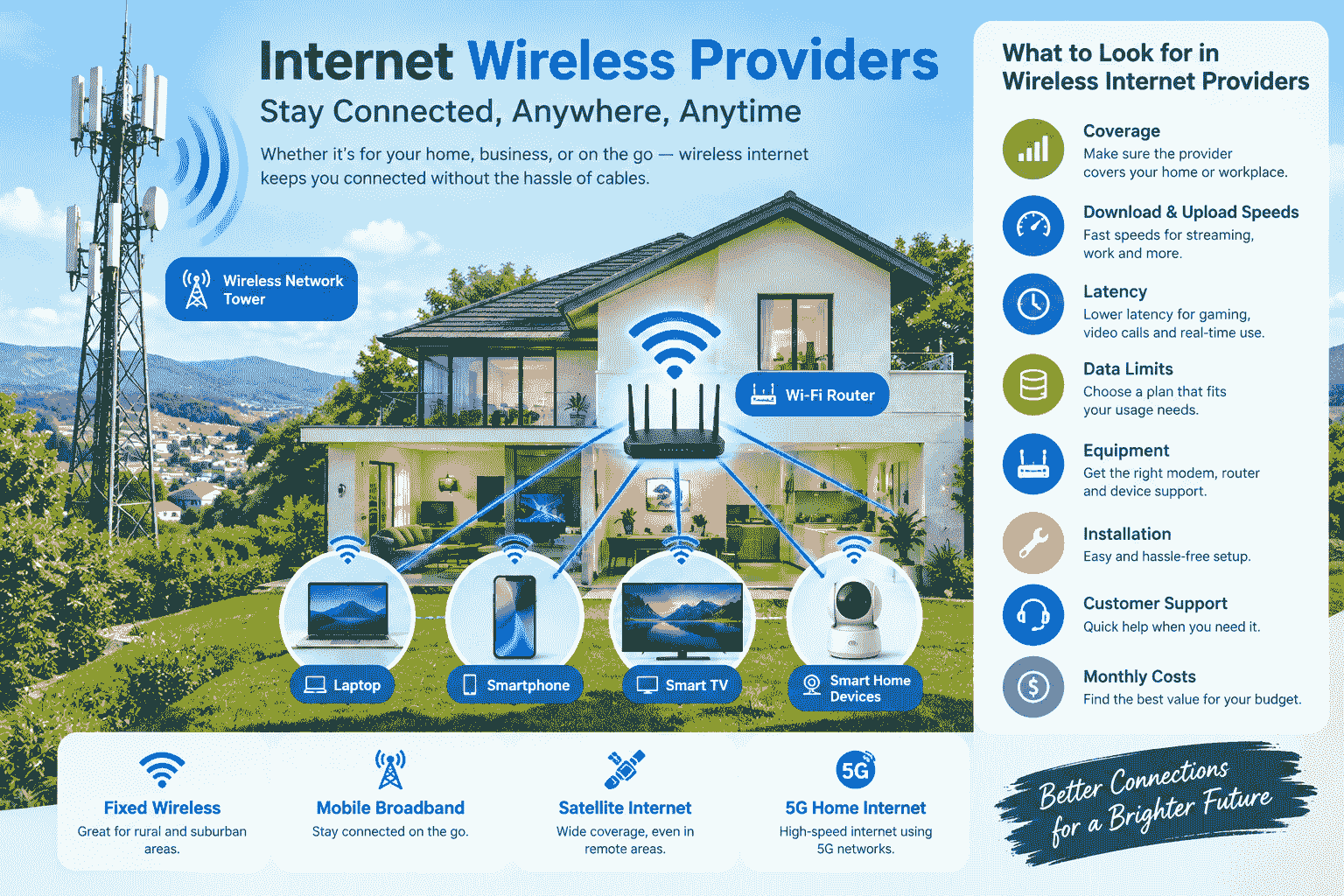
- Fixed wireless internet
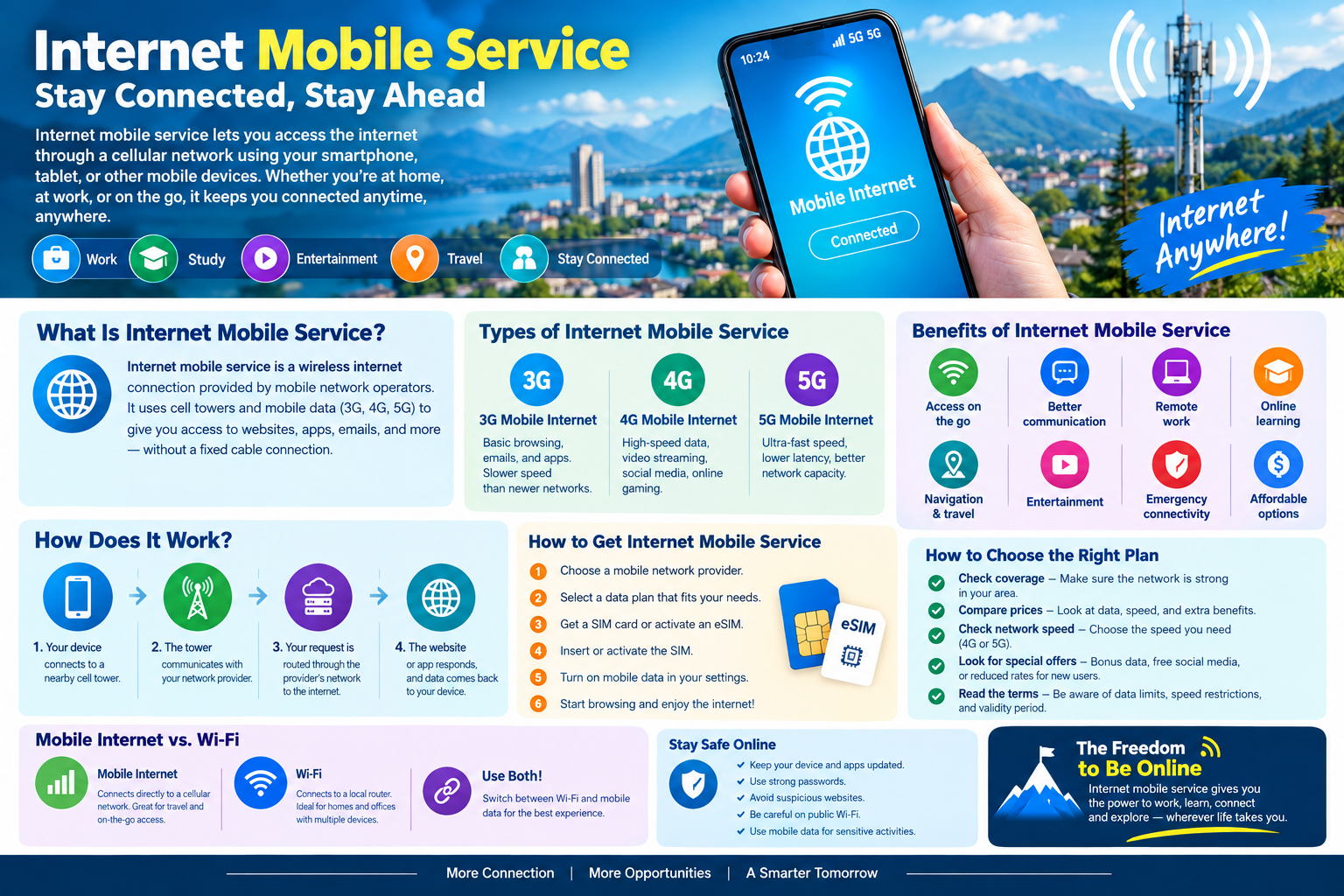
- Mobile internet
- Business internet
- Dedicated internet connections
- Email services
- Domain and hosting-related services
Your ISP may provide you with a modem, router, or gateway device. Some providers also offer additional services such as technical support, phone services, television, cloud storage, or security features.
How Do I Know Who My ISP Is?
There are several ways to answer “how do I know who my ISP is?” The easiest methods include checking your internet bill, router information, computer network settings, or using an IP lookup website.
The method you choose depends on what information you have available.
Method 1: Check Your Internet Bill
The easiest way is to check your Internet bill.
The name of your ISP will most likely be printed on your bill or invoice, or even an e-mail receipt or statement. If you pay your internet bill monthly, the company that receives your payments is your ISP.
Look for information such as:
- Company name
- Internet service name
- Account number
- Broadband plan
- Customer support number
- Billing address
- Service address
For instance, if the monthly charges for the broadband service come from one telecommunications company, then the said company would usually be the ISP.
This approach is particularly helpful if you’re not sure if the company that provided your router is the same company that provides your internet access now.
Method 2: Check Your Router
Your router can also provide clues about your ISP.
First, look at the physical router or modem. The device may display the ISP’s branding or company name.
You can also log in to your router’s administration panel. Depending on the router manufacturer and configuration, information about the internet connection may appear under sections such as:
- Internet
- WAN
- Network
- Status
- Broadband
- Connection
- Internet Setup
There could be details concerning your WAN connection, IP address, DNS servers, gateway, and even the type of connection.
But keep in mind that the company that has built the router and your internet service provider do not have to be the same.
Method 3: Use an Online IP Lookup Tool
Another fast way to know who your ISP is is by using an online IP lookup tool.
Your IP address is your identifier on the internet, and an online IP lookup tool will most likely provide you with any data related to your IP address, including ownership of that IP address range.
A typical result may display:
- Public IP address
- ISP or organization
- Approximate location
- Autonomous System Number
- Country
- Network information
Keep in mind that IP-based location is not always exact. The location shown by an IP lookup service may represent the ISP’s network location rather than your exact physical location.
Method 4: Check Windows Network Information
If you use Windows, you can inspect your network information from the Command Prompt.
Press Windows + R, type cmd, and press Enter.
Then enter:
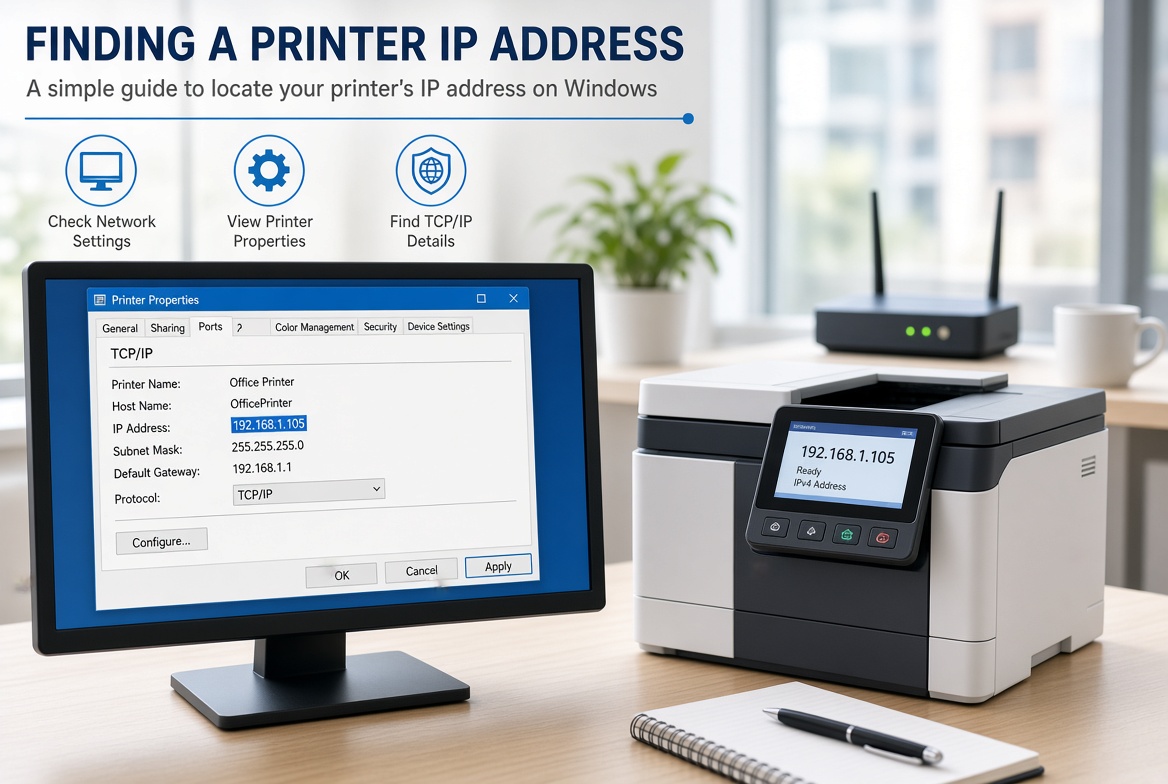
ipconfig
This command displays information about your network adapter.
You may see details such as:
- IPv4 address
- IPv6 address
- Default gateway
- Subnet mask
The default gateway is normally your local router, not necessarily your ISP. Therefore, ipconfig alone may not directly display the ISP’s name.
However, the information can help you understand how your computer connects to your router and internet connection.
You can combine this information with a public IP lookup to identify your ISP.
Method 5: Check Your Mac Network Settings
Mac users can also inspect their network configuration.
Open System Settings and select Network. Choose the connection you are currently using, such as Wi-Fi or Ethernet.
You can view details such as:
- IP address
- Router
- DNS servers
- Connection status
- Network configuration
Again, the router address identifies your local network gateway rather than necessarily identifying your ISP.
For the most reliable ISP identification, combine your network information with your public IP address.
Why Would You Need to Know Your ISP?
You may wonder why identifying your ISP is useful.
There are several reasons.
Troubleshooting Internet Problems
If your internet connection is slow, unstable, or disconnected, you may need to contact your ISP.
Knowing the provider helps you find the correct customer support information and determine whether there is a service outage.
Checking Your Internet Plan
You may want to know whether you are receiving the internet speed included in your plan.
For example, if your plan advertises a particular download speed but your connection consistently performs much slower, you may want to contact your ISP.
Understanding Your Public IP
Your ISP normally assigns your public IP address or provides the network connection through which your public IP is visible.
Knowing the ISP associated with your public IP can help you understand your internet connection.
Contacting Technical Support
When contacting support, the provider may ask for:
- Account information
- Service address
- Router information
- Public IP address
- Connection type
- Error messages
Knowing the ISP makes the troubleshooting process easier.
Checking for Network Outages
Many ISPs provide outage information through their websites or customer portals.
If several devices in your home suddenly lose internet access, checking your ISP’s outage status can help determine whether the problem is local or provider-related.
What Is a Public IP Address?
To understand how ISP lookup works, it helps to understand the difference between a private IP address and a public IP address.
A private IP address is used inside your local network.
Examples include:
- 192.168.1.10
- 192.168.0.20
- 10.0.0.15
Your router uses private IP addresses to communicate with devices inside your home or office.
A public IP address is associated with your internet connection and is visible to internet services.
Your ISP normally provides the connectivity through which your public IP address is assigned or announced.
When you visit an IP lookup service, it generally detects your public-facing IP address rather than your computer’s private address.
What Is the Difference Between ISP and Wi-Fi Provider?
People sometimes use the terms ISP and Wi-Fi provider interchangeably, but they are not the same.
Wi-Fi is a wireless networking technology.
Your ISP provides the internet connection, while your router creates a local network that can distribute that connection through Wi-Fi.
For example:
Internet → ISP → Modem/Router → Wi-Fi → Your Devices
Your phone may be connected to Wi-Fi, but the Wi-Fi signal itself is not your ISP.
Similarly, the company that manufactured your router may be different from the company providing your internet service.
How to Find Your ISP on a Phone
You can also identify your ISP using a smartphone.
If you are connected to your home Wi-Fi, open your browser and search for a public IP lookup service.
The service will detect the public IP address being used by your internet connection and may display the organization associated with it.
If you are using mobile data, the result will normally identify the mobile carrier or network operator providing your cellular internet connection.
This distinction is important because your ISP can change depending on how your device connects to the internet.
For example:
Home Wi-Fi: Your home broadband provider
Mobile data: Your cellular network operator
Can My ISP Be Different From My Internet Company?
The name listed in the IP lookup tool does not necessarily correspond to the actual brand you might be familiar with.
This may be due to the fact that huge telecommunications providers can own several different brands, subsidiary firms, or networking providers.
An IP address may also be assigned to a parent firm or network provider.
That is why the results from an IP lookup cannot serve as evidence of your billing association.
If you want to know whom you are paying for internet access, then please look at your bill or account information.
Why Does an IP Lookup Show a Different Location?
Another common question is why an IP lookup service may show a city or location that is different from your actual location.
IP geolocation is not the same as GPS.
An IP address may be registered to:
- An ISP headquarters
- A regional network
- A data center
- A network exchange
- A nearby city
- A broader geographic area
Therefore, seeing a different city does not necessarily mean that someone else is using your internet connection.
IP geolocation should generally be considered approximate.
Can a VPN Change the ISP Information?
Yes. A VPN can change the network information visible to websites.
When you connect to a VPN, your internet traffic is routed through the VPN provider’s server. Websites may then see the VPN server’s public IP address instead of the IP address normally associated with your home connection.
As a result, an IP lookup may show:
- VPN provider
- Hosting company
- Data center
- Different organization
- Different approximate location
If you want to identify your normal home ISP, disconnect from the VPN and perform the lookup again.
Can a Proxy Change the ISP Result?
A proxy can also influence which IPs appear to be visiting webpages.
Rather than accessing the webpage directly, your data is sent to another server first.
As a result, the web page may be seeing the IP of the proxy rather than your usual public IP.
This can make the IP lookup information differ from that of your true internet provider.
What If I Have Multiple Internet Connections?
If you have more than one internet connection, you may have multiple ISPs.
For example, you might have:
- Home fiber internet
- Mobile data
- Backup broadband
- Business internet
- A secondary ISP
The ISP detected by an IP lookup depends on which connection your device is currently using.
If your computer is connected to your home Wi-Fi, the lookup normally identifies the network associated with that connection.
If you switch to a mobile hotspot, the detected provider may change.
How to Confirm Your ISP
If you want to be confident about the answer to “how do I know who my ISP is?”, use more than one source.
A simple verification process is:
- Check your internet bill.
- Look at your router or modem.
- Check your internet account portal.
- Find your public IP address.
- Use an IP lookup service.
- Compare the organization shown by the lookup with your provider information.
- Contact customer support if the information remains unclear.
Using multiple sources can help prevent confusion between the router manufacturer, network operator, reseller, and actual service provider.
ISP vs Network Operator
An ISP and network provider can sometimes be different organizations.
An ISP might offer its services directly to its customers while utilizing the infrastructure maintained by another telecom company.
On the other hand, the same organization could provide its own infrastructure and internet services.
One of the reasons why the IP address results would display a company that is not exactly similar to the one in your billing statement is this fact.
Is It Safe to Look Up My ISP?
Generally, checking your own public IP and ISP information is a normal networking activity.
However, avoid sharing sensitive account information publicly.
You generally do not need to publish:
- Account numbers
- Billing information
- Passwords
- Customer IDs
- Router administrator passwords
- Private network credentials
If someone asks you to send a screenshot of your network information for troubleshooting, remove sensitive information before sharing it.
Can My ISP See My Internet Activity?
The ISP runs a portion of the network that connects your device to the larger internet. What information an ISP sees depends on the type of connection, technology used, encryption, laws, and services being utilized by the user.
HTTPS encrypts the data within standard web browsing from your computer to the server in question; however, other network data may still be seen by network operators.
A VPN can affect who sees what on the network in regard to certain aspects of your connection, but it does not guarantee anonymity.
Privacy is dependent on various issues, including browser settings, account activities, sites visited, applications, device settings, and network services.
What Information Does an ISP Usually Provide?
Depending on the provider and plan, your ISP may provide:
- Internet access
- Public IP connectivity
- DNS services
- Modem or router equipment
- Technical support
- Network security features
- Static IP addresses
- Business connectivity
- Email services
- Additional communication services
The exact services vary between providers and countries.
Common Mistakes When Trying to Find Your ISP
There are several mistakes people make when searching for their internet provider.
Mistake 1: Assuming the Router Brand Is the ISP
The router manufacturer’s name does not necessarily identify your ISP.
Mistake 2: Confusing the Default Gateway With the ISP
Your default gateway is usually your local router.
Mistake 3: Trusting IP Geolocation as an Exact Address
IP geolocation can be approximate and should not be treated as GPS-level information.
Mistake 4: Forgetting About VPNs
A VPN can cause an IP lookup service to identify the VPN network instead of your normal ISP.
Mistake 5: Checking the Wrong Connection
If you have Wi-Fi and mobile data enabled, make sure you know which connection is being used.
Frequently Asked Questions
How do I know who my ISP is?
You can check your internet bill, router information, account portal, or use an online IP lookup service. Checking your public IP can show the organization associated with your internet connection.
Can I find my ISP from my IP address?
Yes. An IP lookup service can usually identify the organization or network associated with a public IP address. The result may not always match the exact billing brand.
Does Wi-Fi have an ISP?
Wi-Fi itself is not an ISP. Wi-Fi is a wireless networking technology used to connect your devices to a local network. Your ISP provides the internet connection.
Can my ISP change?
Yes. Your ISP can change if you switch providers, use another connection, connect through a VPN, or move between Wi-Fi and mobile data.
Does a VPN hide my ISP?
A VPN can prevent websites from directly seeing the public IP address normally associated with your internet connection. However, your original ISP still provides your underlying internet connection.
Why does my IP lookup show another company?
The IP address may belong to a parent company, network operator, reseller, hosting provider, VPN, or another organization associated with the network.
Can I find my ISP without logging into my router?
Yes. You can usually identify your ISP by checking your internet bill or using a public IP lookup service.
Does ipconfig show my ISP?
Not usually. The Windows ipconfig command mainly displays local network information such as your private IP address, subnet mask, and default gateway. You may need a public IP lookup service to identify your ISP.
Final Thoughts
If you have been asking “how do I know who my ISP is?”, there are several simple ways to find the answer.
Your Internet service provider is easy to find through the invoice for your internet plan or account details if you wish to determine it.
If you want to discover what network your present internet connection belongs to, just look at your IP address via an IP lookup.
Moreover, you can look at your router, Windows network settings, and even phone connection information.
It is important to remember that each of the following – router producer, Wi-Fi network, internet service provider, network operator, and virtual private network provider – may differ from one another.
For most users, the easiest approach is simple: check your provider account, identify your public IP, and compare the network information shown by an IP lookup service.
One thought on “How Do I Know Who My ISP Is? Easy Ways to Find Your Internet Provider”