


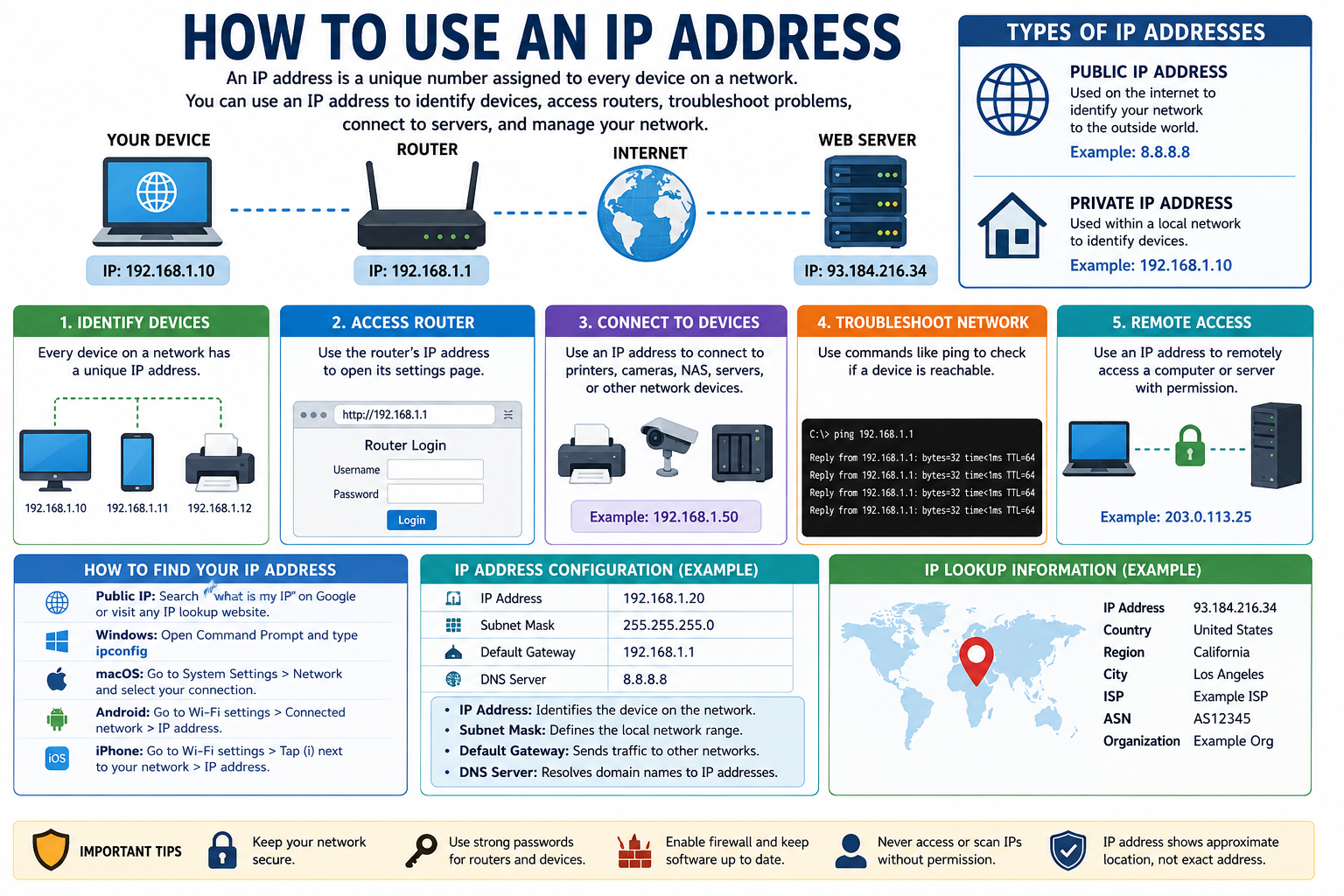
An IP Address is considered one of the most essential components of computer networking. Any device that connects to the network will require a means of communicating with other devices, and the IP address facilitates this communication process. Regardless of whether it is a computer, a cell phone, a router, a printer, a server, or any other device that is connected to the network, the IP address comes into play.
If you are wondering how to use an IP, you don’t have to be an expert in networking. IP address is capable of doing several things that one might need in their daily routine, like device identification in a network, access to the router, troubleshooting issues related to connections, access to a local server, etc.
In this guide, we will explain what an IP address is, how it works, how to find one, and how you can use an IP address safely for different networking purposes.
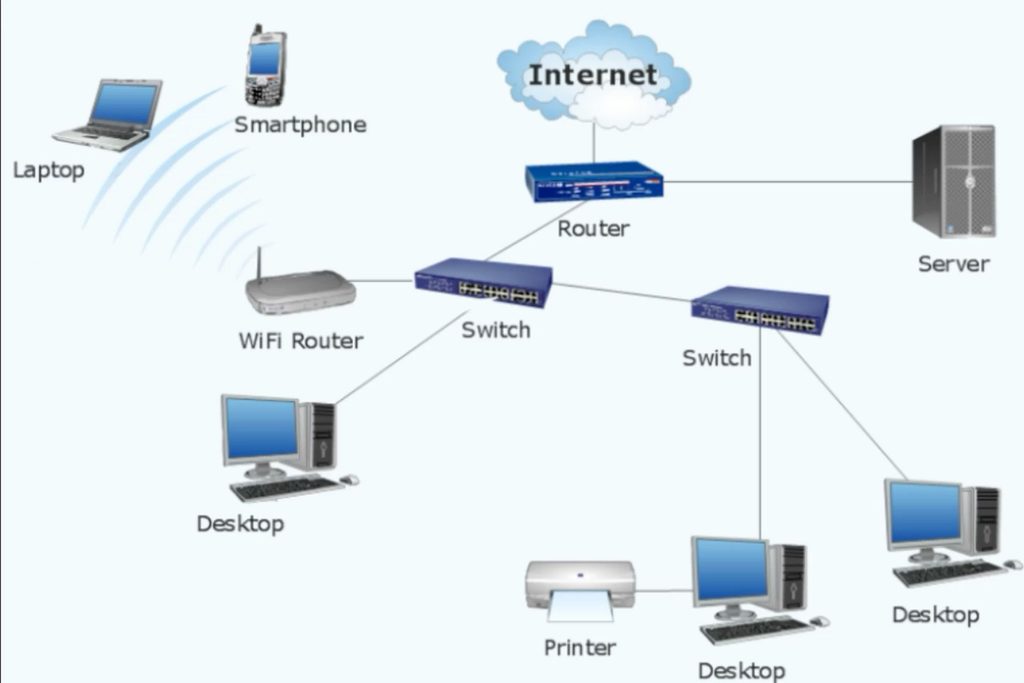
What Is an IP Address?
IP stands for Internet Protocol. An IP address is a numerical address assigned to a device or network interface so that data can be sent to the correct destination.
Think of an IP address like a mailing address. When you send a letter, the postal service needs an address to know where the letter should go. In a similar way, network devices use IP addresses to identify where data should be delivered.
For example, a typical IPv4 address may look like:
192.168.1.10
Another example of a public IP address could look like:
8.8.8.8
There are two major versions of IP addresses: IPv4 and IPv6.
IPv4
IPv4 is the older and most widely recognized IP addressing system. It uses four groups of numbers separated by periods.
Example:
192.168.1.1
Each group can contain a number from 0 to 255.
IPv6
IPv6 was developed to provide a much larger number of available addresses. An IPv6 address uses hexadecimal characters and looks different from IPv4.
Example:
2001:db8::1
Both IPv4 and IPv6 perform the same basic job: helping devices communicate across networks.
How Does an IP Address Work?
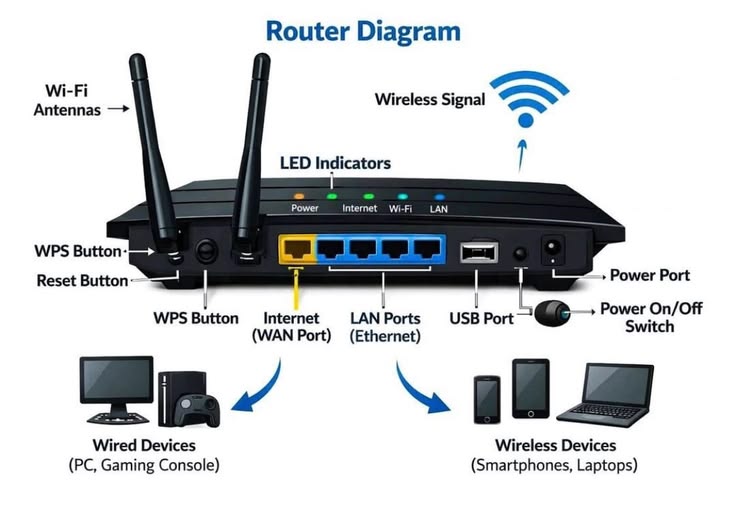
Whenever you visit a website, send an e-mail, watch a video, or link to some other device, information is sent over the network.
The information from your computer is routed through your own network, which in turn routes to other networks until the destination is reached.
A simplified process looks like this:
Your Device → Router → Internet → Destination Server
The IP address helps identify the source and destination of network traffic.
For example, when your computer communicates with a server, the network needs to know where the data came from and where it needs to go.
This is why IP addresses are fundamental to internet communication.
How an IP address works
Types of IP Addresses
Before learning how to use an IP, it is important to understand the different types of IP addresses.
Public IP Address
A public IP address refers to an address that is assigned to your internet connection and is utilized in communication over the public internet.
The public IP address is usually allocated by your Internet Service Provider (ISP).
The public IP address can be used by websites and online services to communicate with your network.
When you visit a website, the website’s server will receive your connection through the public IP address.
Private IP Address
A private IP address is normally used inside a local network.
Common private IPv4 ranges include:
- 10.0.0.0 – 10.255.255.255
- 172.16.0.0 – 172.31.255.255
- 192.168.0.0 – 192.168.255.255
For example:
192.168.1.20
Your laptop, smartphone, smart TV, or printer may have a private IP address assigned by your router.
Static IP Address
The static IP will remain the same as long as there are no changes made to it manually or through the configuration of the network.
Static IPs can be considered helpful for use on servers and networked devices.
Dynamic IP Address
The static IP address does not change except when it is modified by hand or when the network settings are altered.
Static IP addresses have their uses in servers, network devices, and other services requiring constant addresses.
How to Find Your IP Address
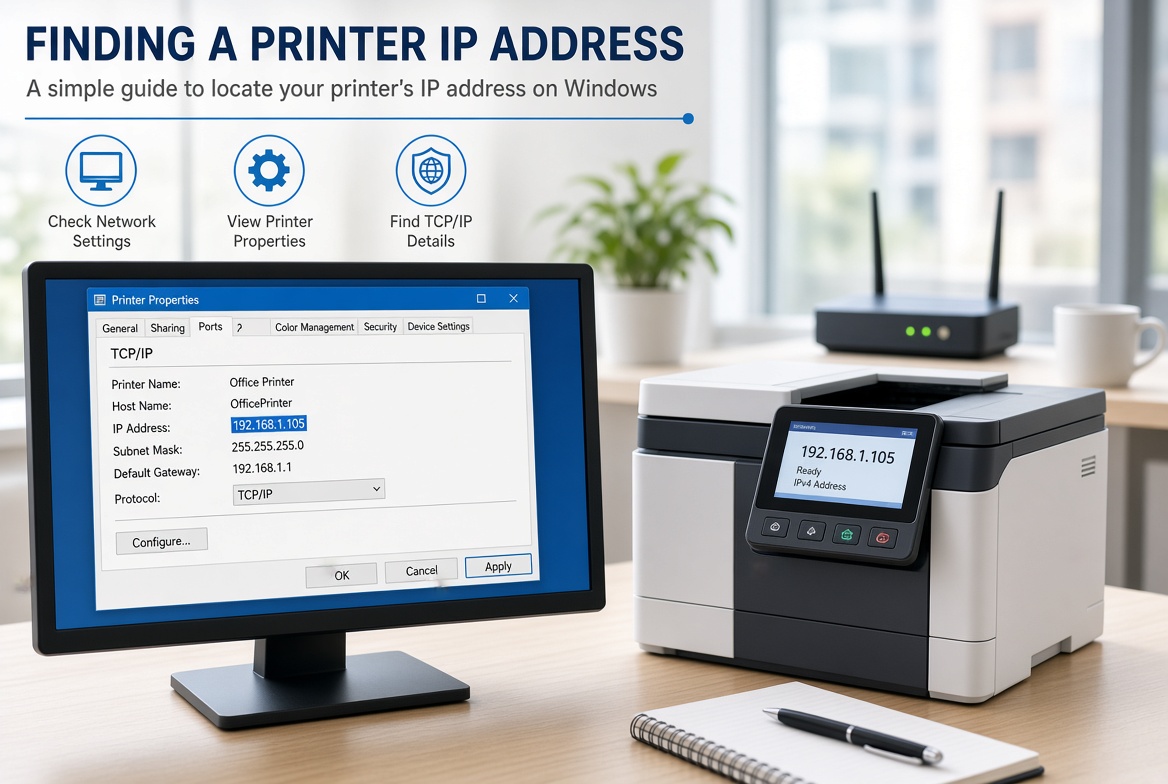
One of the first things you may need to do before learning how to use an IP is to find the IP address you want to work with.
You may need to find either your public IP address or your private IP address.
How to Find Your Public IP Address
The easiest way to find your public IP is to search online for:
“What is my IP?”
Many search engines and IP lookup services can display your current public IP address.
Your public IP is normally provided by your internet service provider.
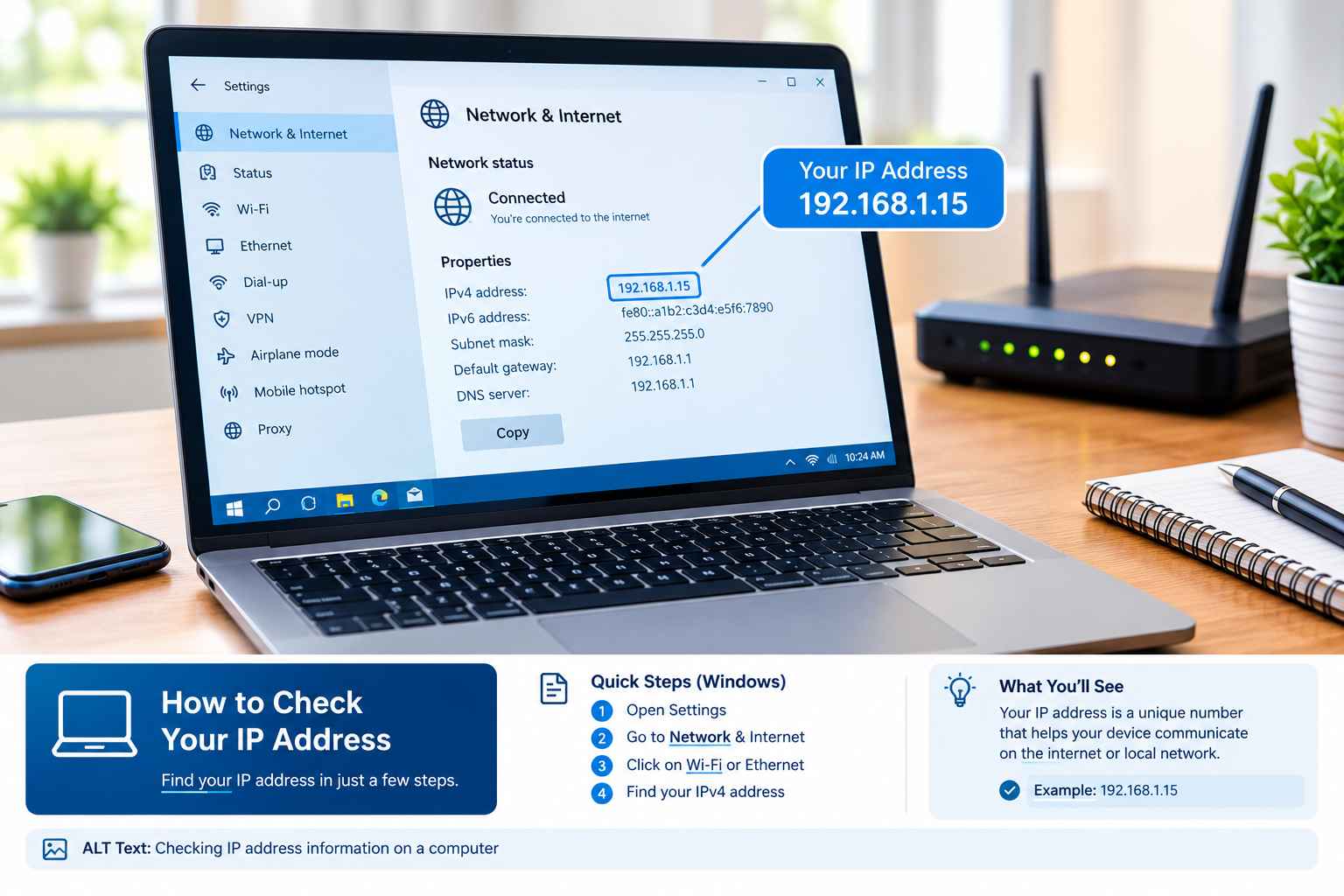
How to Find Your IP on Windows
You can use Windows Command Prompt to find your local IP address.
Follow these steps:
- Open the Start menu.
- Search for Command Prompt.
- Open Command Prompt.
- Type:
ipconfig
- Press Enter.
- Look for IPv4 Address under the active network adapter.
You may see an address similar to:
192.168.1.15
That is your local IPv4 address.
How to Find Your IP on macOS
On a Mac, you can usually find your local IP through network settings.
- Open System Settings.
- Select Network.
- Choose your connected network.
- Open the network details.
- Look for the IP address.
How to Find Your IP on Android
On Android devices, the exact menu can vary by manufacturer.
Generally:
- Open Settings.
- Select Wi-Fi.
- Select the connected network.
- Open network details.
- Look for the IP address.
How to Find Your IP on iPhone
On an iPhone:
- Open Settings.
- Tap Wi-Fi.
- Tap the connected Wi-Fi network.
- Look for the IPv4 address information.
How to Use an IP Address
Now let’s look at the main question: how to use an IP address.
An IP address can be useful for several networking tasks.
1. Use an IP to Identify a Device
On a local network, each connected device can have its own private IP address.
For example:
- Computer: 192.168.1.10
- Phone: 192.168.1.11
- Printer: 192.168.1.12
These addresses can help you identify individual devices on the network.
This can be useful when managing a home network or business network.
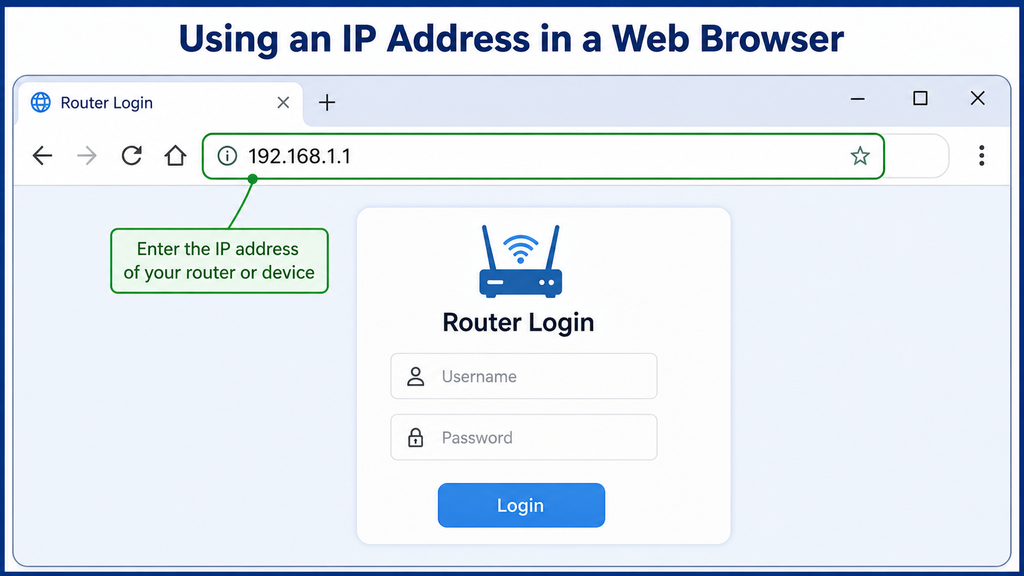
2. Use an IP to Access Your Router
Many routers provide a web-based administration interface.
A common local router address is:
192.168.1.1
Another common address is:
192.168.0.1
To access a router interface, you can enter the correct router IP into your browser’s address bar.
For example:
http://192.168.1.1
However, the actual router IP depends on the network configuration.
After reaching the router login page, you will normally need administrator credentials.
3. Use an IP to Connect to a Network Device
Some network devices can be accessed using their local IP address.
Examples include:
- Network printers
- NAS devices
- Local web servers
- Network cameras
- Other network equipment
For example, a local device may have an address such as:
192.168.1.50
If the device provides a web interface, you may be able to enter that IP address in a browser to access it.
4. Use an IP for Network Troubleshooting
IP addresses are especially useful when troubleshooting network problems.
You can use commands such as ping to test whether another device is reachable.
For example:
ping 192.168.1.1
In case of a response, it means that your computer is able to reach out to that IP at the network level.
If you get a timeout, it could mean that there is some sort of connectivity problem, firewall issue, wrong IP, or other networking problem.
5. Use an IP for Remote Access
IP addresses may also be used when it comes to remote access to machines and servers.
This includes, for instance, the use of services like SSH or Remote Desktop to access the machines.
But any form of remote access should always be done securely by ensuring proper authentication and firewalls, among other things.s
How to Use an IP Address in a Web Browser
In some situations, you can enter an IP address directly into a web browser.
For example:
http://192.168.1.1
It is usually used in order to connect to the local router or any other device that uses the web interface.
Sometimes you will also come across the public IP address of the web server.
Nevertheless, typing in the IP address of a server will not always yield the same outcome as typing in the domain name.
In case the server hosts more than one website, the server may require the domain name in order to know which website to display.
It is also possible to set up HTTPS certificates using domain names, which may lead to warnings from the browser.
Therefore, an IP address is not always a direct replacement for a domain name.
How to Use an IP Address for Network Troubleshooting
Network troubleshooting is one of the most practical ways to use an IP address.
Using Ping
The ping command can help test basic connectivity between devices.
For example:
ping 192.168.1.1
If you receive replies, the destination is responding to the ping request.
If you receive messages such as “Request timed out,” you may need to investigate the network connection.
Check Your Default Gateway
Your default gateway is usually your router’s local IP address.
On Windows, you can use:
ipconfig
Then look for Default Gateway.
If your computer has an IP address but cannot communicate with the gateway, there may be a local network problem.
Use Tracert on Windows
Windows also provides the tracert command.
Example:
tracert example.com
It can help show the network path toward a destination.
On Linux and macOS, a similar tool is commonly called traceroute.
How to Use an IP Address for Remote Access
An IP address can be part of a remote access setup.
For instance, it can be necessary for the system administrator to connect to the server from a remote place.
According to the operating system and the service provided, tools like SSH or Remote Desktop can be utilized.
Nevertheless, even having the IP address does not guarantee access to the computer.
You normally also need:
- Permission to access the device
- A valid username or account
- Authentication
- A properly configured service
- Network connectivity
- Appropriate firewall rules
For security, remote access should be restricted to authorized users and protected with strong authentication.
Avoid attempting to access systems that you do not own or have permission to administer.
[IMAGE SECTION 8]
Image suggestion: A secure remote-access diagram showing a user computer connecting to an authorized server.
Image ALT: Remote access using an IP address
How to Use an IP Address to Configure a Network
IP addresses are also important when configuring a network manually.
A typical IPv4 configuration may include:
- IP address
- Subnet mask
- Default gateway
- DNS server
For example:
IP Address: 192.168.1.20
Subnet Mask: 255.255.255.0
Gateway: 192.168.1.1
The IP address is used to recognize the device within the network.
The subnet mask is used to find out which devices are within the local network.
The default gateway serves as a connection to other networks.
DNS converts domain names to IP addresses.
For most home users, DHCP automatically provides these settings. Manual configuration is more common when a specific device requires a predictable network address.
IP Address and DNS: What Is the Difference?
IP addresses and DNS are closely related, but they are not the same thing.
An IP address identifies a network destination.
DNS, or Domain Name System, helps translate human-readable domain names into IP addresses.
For example:
example.com → IP address
People generally find domain names easier to remember than numerical IP addresses.
You can think of it this way:
Domain name = Name
IP address = Network address
When you type a website’s domain name into a browser, DNS can help the browser find the corresponding server address.
Can You Use an IP Address Instead of a Domain Name?
In some instances, you may be able to use the IP address rather than the domain name depending on how the server is set up.
When a web server supports just one website that receives IP connections directly, then entering the IP will do.
On the other hand, today’s web servers support more than one website from the same IP address. Here, it becomes necessary to enter the domain name since the server needs to know which website you want.
The setup of HTTPS is yet another instance that makes the use of a domain name preferable.
Hence, the IP address and the domain name serve different purposes despite working closely together.
How to Use an IP Address for Security Checks
You can use your own IP address to learn basic information about your internet connection.
An IP lookup service may provide information such as:
- IP address
- Internet service provider
- Organization
- Autonomous System Number (ASN)
- Approximate geographic region
- Network information
However, IP geolocation should not be treated as an exact physical location.
An IP address generally does not reliably reveal someone’s exact home address.
If you are researching something unknown on your own network, then having IP details can give you some clues about the source of network traffic, but other security details might be necessary to pinpoint the exact origin.
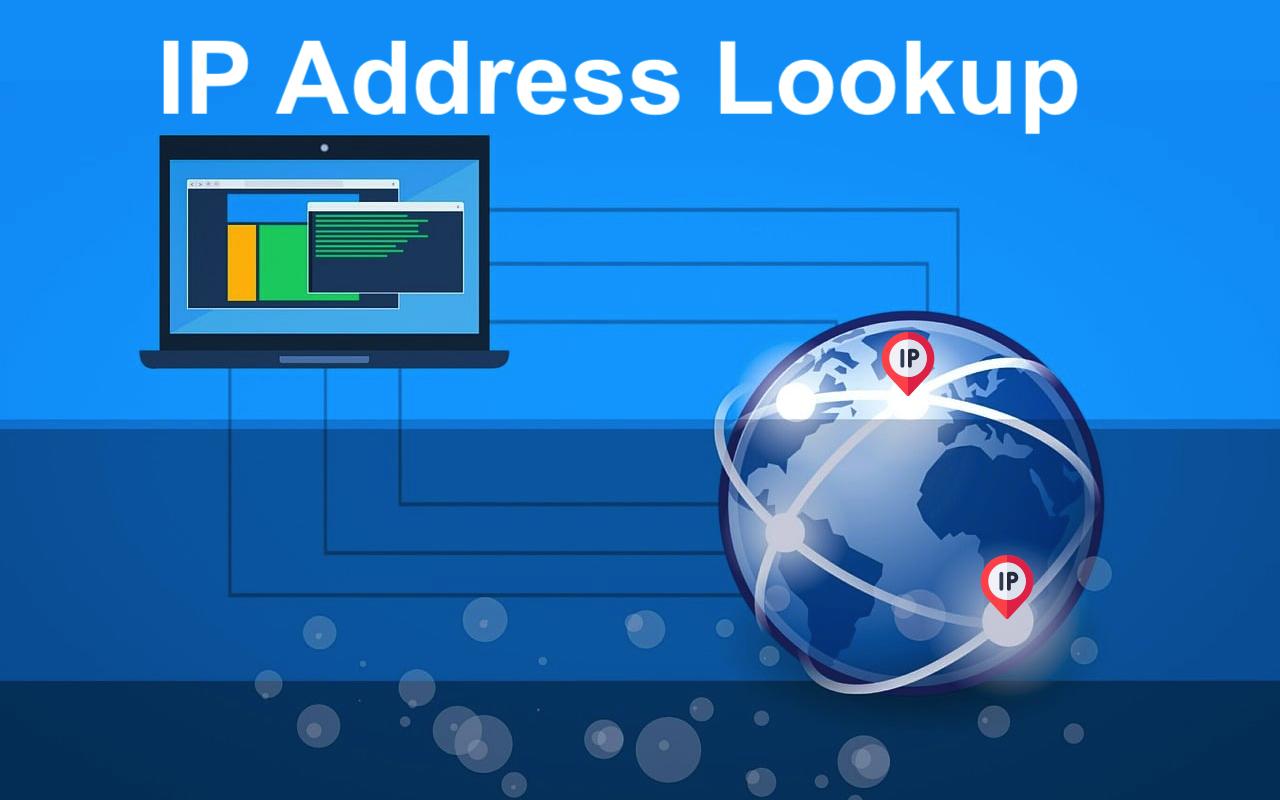
How to Use an IP Lookup Tool
An IP lookup tool can provide basic information about an IP address.
The process is usually simple.
Step 1: Find the IP Address
First, obtain the IP address you want to check.
Step 2: Open an IP Lookup Tool
Use a reputable IP information or lookup service.
Step 3: Enter the IP Address
Enter the IP address into the search or lookup field.
Step 4: Review the Results
Depending on the service, you may see:
- Country
- Region
- City or approximate area
- ISP
- Organization
- ASN
- Network information
Step 5: Understand the Limitations
The results are not always perfectly accurate.
IP-based location information is generally approximate and can be affected by VPNs, proxies, mobile networks, corporate networks, and ISP infrastructure.
Public IP vs Private IP: Which One Should You Use?
The type of IP you use depends on what you are trying to accomplish.
| Feature | Public IP | Private IP |
| Used on the public internet | Yes | No |
| Used inside local networks | Not normally | Yes |
| Example | 8.8.8.8 | 192.168.1.10 |
| Common purpose | Internet communication | Local device communication |
| Assigned by | ISP/network provider | Router/DHCP or administrator |
If you want to identify your internet connection from the outside, you generally care about the public IP.
If you want to communicate with a device inside your home or office network, you usually work with its private IP.
Common IP Address Problems and Solutions
Understanding common IP problems can make network troubleshooting easier.
IP Conflict
An IP conflict happens when two devices are assigned the same IP address.
This can cause connectivity problems.
Using DHCP and avoiding incorrect manual configurations can help prevent these conflicts.
Cannot Access the Router
If you cannot open your router’s local IP address, check:
- Wi-Fi or Ethernet connection
- Default gateway
- Router status
- Firewall settings
- Correct router address
No Internet Connection
A device may have a local IP address but still have no internet connection.
In that situation, check the router, gateway, DNS settings, and internet service.
IP Address Changed
If your connection uses a dynamic public IP, the address may change over time.
This is normal for many internet connections.
Website Does Not Open Using IP
A website may not work when accessed directly through its IP because of DNS, virtual hosting, HTTPS, or server configuration.
Is It Safe to Share Your IP Address?
An IP address is network information, so you should avoid sharing it unnecessarily with unknown people.
However, an IP address alone generally does not reveal your exact home address or automatically provide access to your device.
Your network security also depends on other factors such as:
- Router configuration
- Firewall settings
- Open ports
- Authentication
- Software security
- Operating system updates
If you operate services that are accessible from the public internet, make sure they are properly secured.
Common Mistakes When Using an IP Address
Beginners often make several mistakes when working with IP addresses.
Mistake 1: Confusing Public and Private IPs
A private IP such as 192.168.1.10 is different from your public internet IP.
Mistake 2: Using the Wrong IP
Always verify that you are using the correct address for the device or service.
Mistake 3: Incorrect Manual Configuration
Entering an incorrect subnet mask or gateway can cause connectivity problems.
Mistake 4: Assigning Duplicate IP Addresses
Two devices should not normally use the same manually assigned IP address on the same network.
Mistake 5: Assuming an IP Gives Exact Location
IP geolocation is approximate and should not be treated as a precise physical tracking method.
Mistake 6: Ignoring Security
Do not expose network services to the public internet without appropriate security controls.
Best Practices for Using IP Addresses
Following a few basic practices can make network management safer and easier.
- Use DHCP if you do not need to manually set IP configuration.
- Only use static IP addresses when you have a reason.
- Update router firmware and device software.
- Use robust admin passwords.
- Make sure that firewall protection is enabled.
- Do not expose unnecessary network services.
- Document your important network settings.
- Check the IP address before making any changes to your network.
- Use proper authentication when remotely accessing anything.
- Never access any system without authorization.
Frequently Asked Questions
What is an IP address used for?
An IP address helps identify a device or network interface and allows network traffic to reach the appropriate destination.
How do I use an IP address?
You can use an IP address to access network devices, troubleshoot connectivity, identify devices on a local network, configure network settings, and connect to authorized services.
Can I access a website using its IP address?
Sometimes, but not always. Website hosting, DNS, virtual hosting, and HTTPS configuration can prevent direct IP access from working as expected.
How do I find my IP address?
You can find your public IP using an IP lookup service or search engine. Your private IP can usually be found through your device’s network settings.
What is the difference between public and private IP?
A public IP is used for communication across the internet, while a private IP is normally used inside a local network.
Can an IP address reveal my exact location?
Usually no. IP geolocation generally provides an approximate location and network information rather than an exact physical address.
How do I use an IP address to troubleshoot my network?
You can use tools such as ping, ipconfig, and tracert to check IP configuration and network connectivity.
Can I change my IP address?
A private IP can often change automatically through DHCP. Public IP changes depend on your ISP and network setup.
What is a static IP?
A static IP is an address that is intentionally kept consistent instead of being dynamically assigned.
What is a dynamic IP?
A dynamic IP is assigned automatically and can change over time.
Conclusion
Learning how to use an IP is an important first step toward understanding computer networks and internet connectivity. IP addresses help devices communicate, allow administrators to identify network devices, and provide useful information for troubleshooting.
The IP address can be used to control the router, discover devices within the local network, test the network connection using applications like ping, set network parameters, establish connections to authorized remote computers, and check information about IP addresses.
The main issue one should remember here is the distinction between public and private IP addresses. The first type of IP address is usually used on local networks, whereas the second one is used to communicate through the internet.
Having learned this basic information, it becomes easier to do network troubleshooting, configuration, and other work related to IP addresses.
One thought on “How to Use an IP Address: A Complete Beginner’s Guide”