






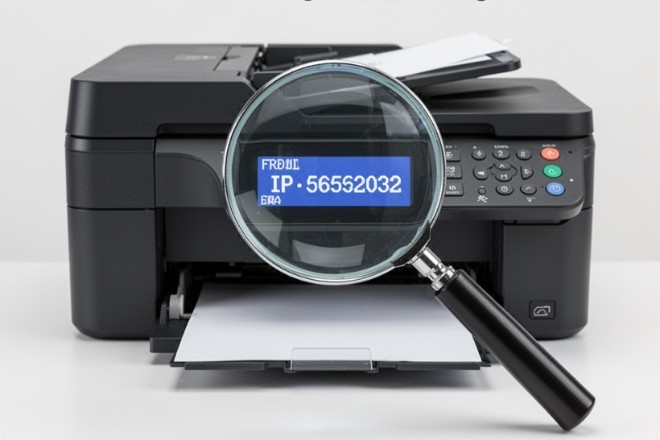
Struggling to locate your printer’s IP address? Whether you’re troubleshooting a network printer, setting up wireless printing, accessing the printer’s web interface, or adding it to a new device, knowing the IP address is essential.
In this complete 2026 guide, you’ll learn multiple proven ways to find a printer’s IP address quickly—no matter if you have an HP, Brother, Canon, Epson, or other brand. These steps work for Wi-Fi printers and Ethernet network printers (USB printers don’t have IP addresses).
Quick Navigation
- Why Do You Need Your Printer’s IP Address?
- Method 1: Print a Network Configuration Page (Fastest & Easiest)
- Method 2: Check Directly on the Printer Screen
- Method 3: Find Printer IP on Windows 11 / 10
- Method 4: Locate Printer IP Address on Mac
- Method 5: Use Your Router’s Admin Page (Works for All Devices)
- Method 6: Advanced Command-Line Methods
- Method 7: Brand-Specific Apps & Tools
- Common Problems & Fixes
- FAQ: Printer IP Address Questions Answered
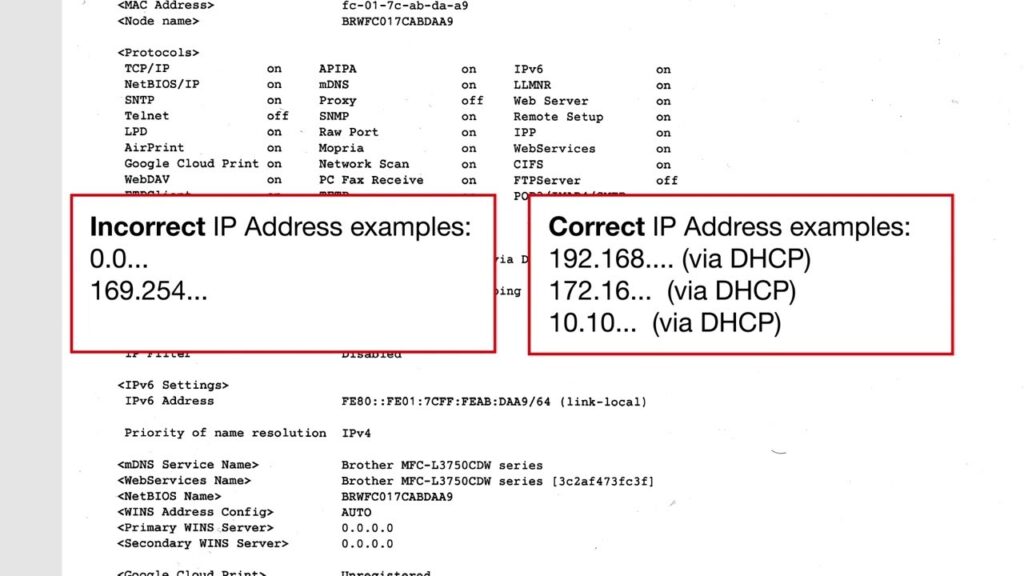
FAQ: How to confirm your printer is connected to the network
This is an example of a printed network configuration report from a Brother printer — look for the IPv4 Address or IP Address section (usually something like 192.168.x.x).
Why Do You Need Your Printer’s IP Address?
Common reasons include:
- Adding the printer manually via IP on new computers
- Accessing the printer’s embedded web server (e.g., http://192.168.1.105) for scans, firmware, or settings
- Fixing “printer offline” or connection drops
- Setting a static IP to prevent address changes
- Troubleshooting network conflicts
Important: Ensure your printer is powered on and connected to the same Wi-Fi or wired network as your computer.
Method 1: Print a Network Configuration Page (Recommended First Step)
Most modern printers let you print a detailed network report showing the IP address, MAC address, SSID, and more.
Steps (general):
- On the printer’s control panel, go to Menu / Settings → Network / Wireless / Reports.
- Select Network Configuration, Print Network Settings, Configuration Report, or Wireless Test Report.
- The printer outputs 1–2 pages — scan for IPv4 Address, IP Address, or TCP/IP.
Brand-specific shortcuts:
- HP printers: Dashboard → Tools → Reports → Network Configuration Report (or Wireless → Print Network Summary).
- Brother printers: Settings → All Settings → Print Reports → Network Configuration.
- Canon printers: Device Settings → LAN Settings → Print LAN Settings.
- Epson printers: Often under Network Settings → Print Status Sheet.
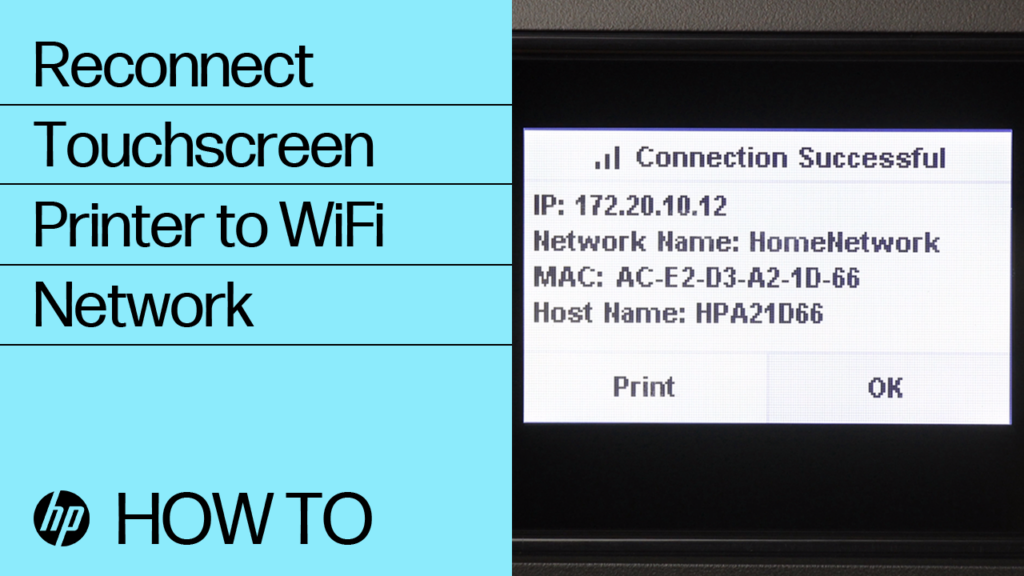
Reconnecting a Touchscreen Printer to a Wireless Network
Example: HP touchscreen showing successful Wi-Fi connection with IP address clearly displayed (172.20.10.12 in this case).
This method is device-independent and works even if your computer can’t see the printer.
Method 2: View IP Directly on the Printer’s Screen
Many touchscreen or display-equipped printers show the IP live:
- Navigate to Wireless / Network Status / TCP/IP Settings.
- Look for IPv4 Address or Current IP.
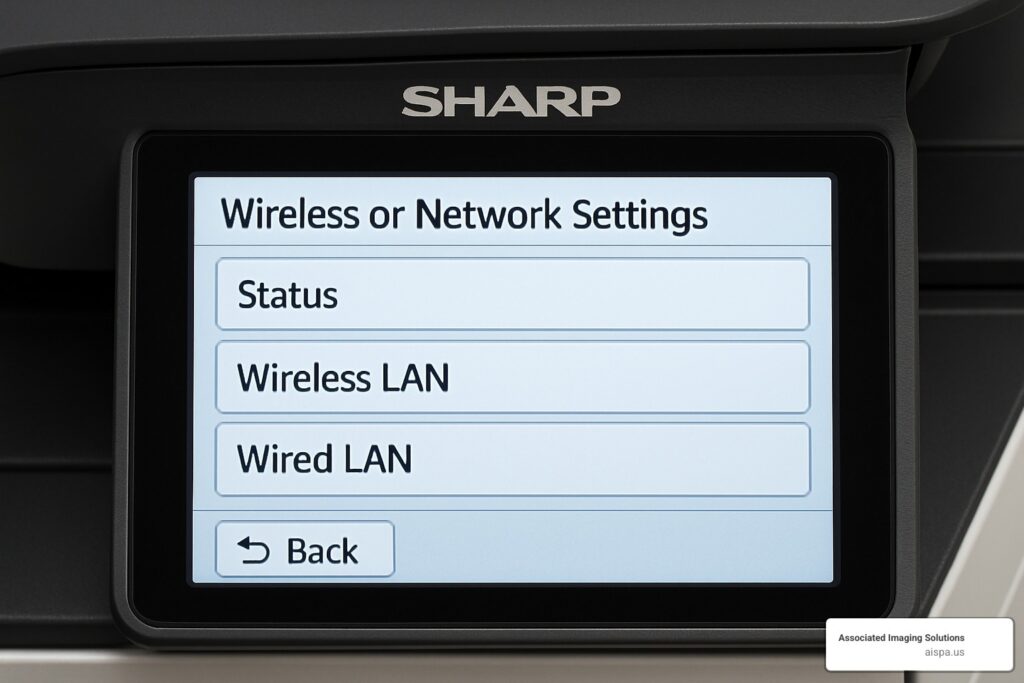
Connect the Sharp Printer to the Computer Wirelessly in 5 Steps
Sharp printer control panel displaying Wireless LAN and network options — similar menus exist on HP, Brother, and Canon models.
If no screen exists, revert to printing the config page.
Method 3: Find Printer IP Address on Windows 11 / Windows 10
- Press Win + I to open Settings.
- Go to Bluetooth & devices → Printers & scanners.
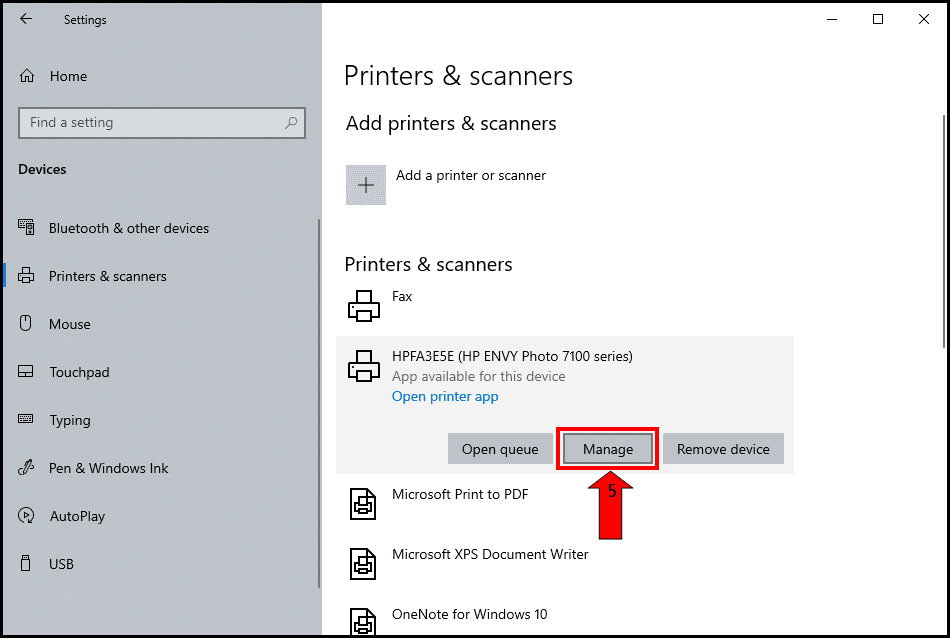
- Click your printer → Manage or Printer properties.
- Check:
- General tab → Location field (often shows http://[IP address]).
- Ports tab → Look for the Standard TCP/IP Port with the IP listed.
How to Find Printer IP Address | ExpressVPN
Windows 11 Printers & scanners screen — click Manage to access properties.
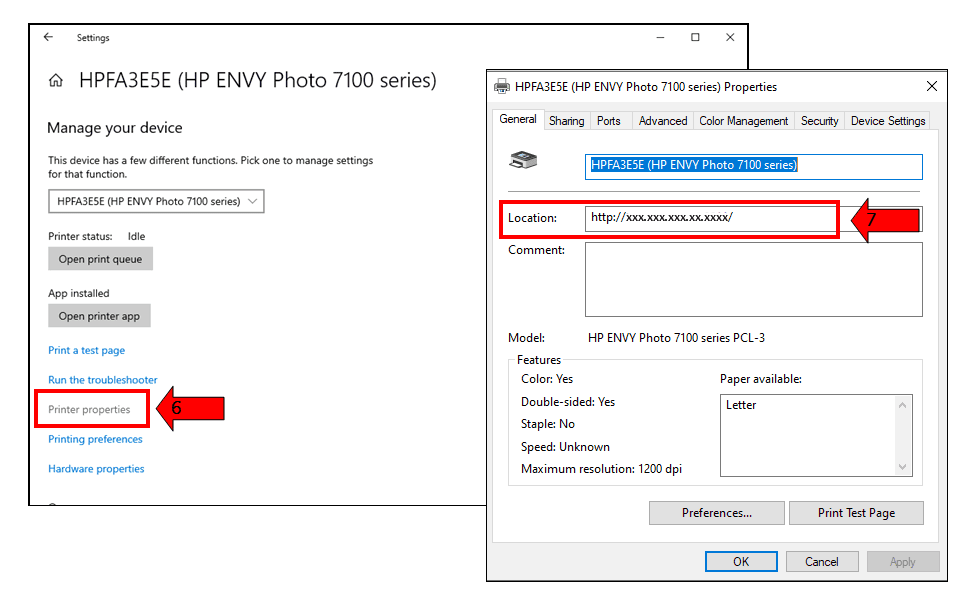
In Printer properties, the Location field frequently displays the printer’s IP address directly.
Alternative: Search Control Panel → Devices and Printers → right-click printer → Printer properties → Ports or Web Services tab.
Method 4: Find Printer IP Address on Mac (macOS Ventura / Sonoma / Sequoia)
- Click Apple menu → System Settings (or System Preferences).
- Select Printers & Scanners.
- Highlight your printer.
- Click Options & Supplies → check General / Location field (shows IP).
- If not visible: Open Terminal → type lpstat -s → look for device URI with IP (e.g., ipp://192.168.x.x).
Bonus: Visit http://localhost:631/printers in Safari (enable CUPS web interface first with cupsctl WebInterface=yes in Terminal).
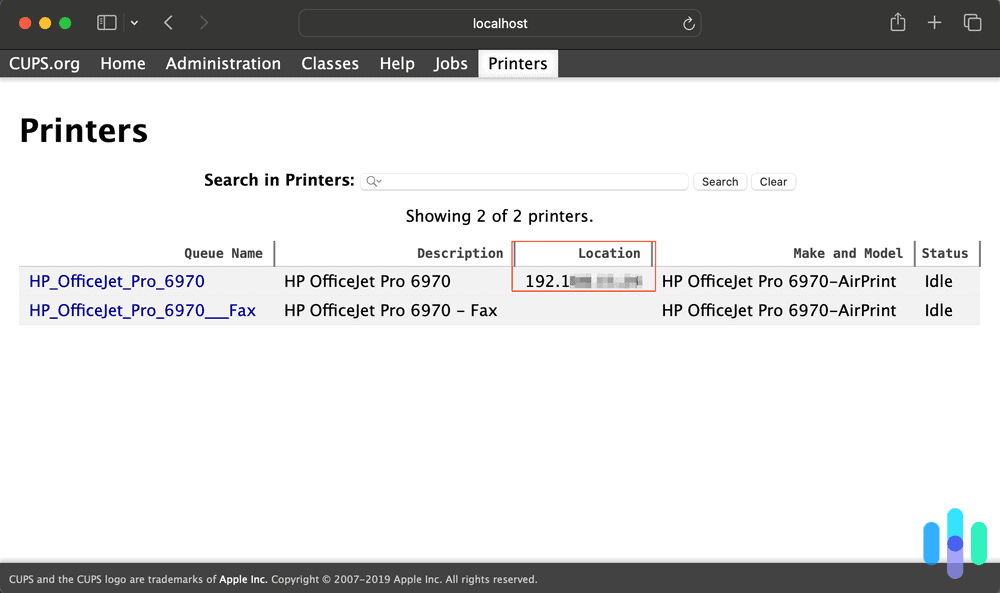
CUPS web interface on Mac showing printers and their IP addresses in the Location column.
Method 5: Check Router Admin Page (Universal Method)
This lists every connected device, including your printer.
- Find router IP: Windows → ipconfig (Default Gateway) | Mac → System Settings → Network → Details. Usually 192.168.0.1 or 192.168.1.1.
- Enter it in the browser → login (try admin/admin, admin/password, or check router sticker).
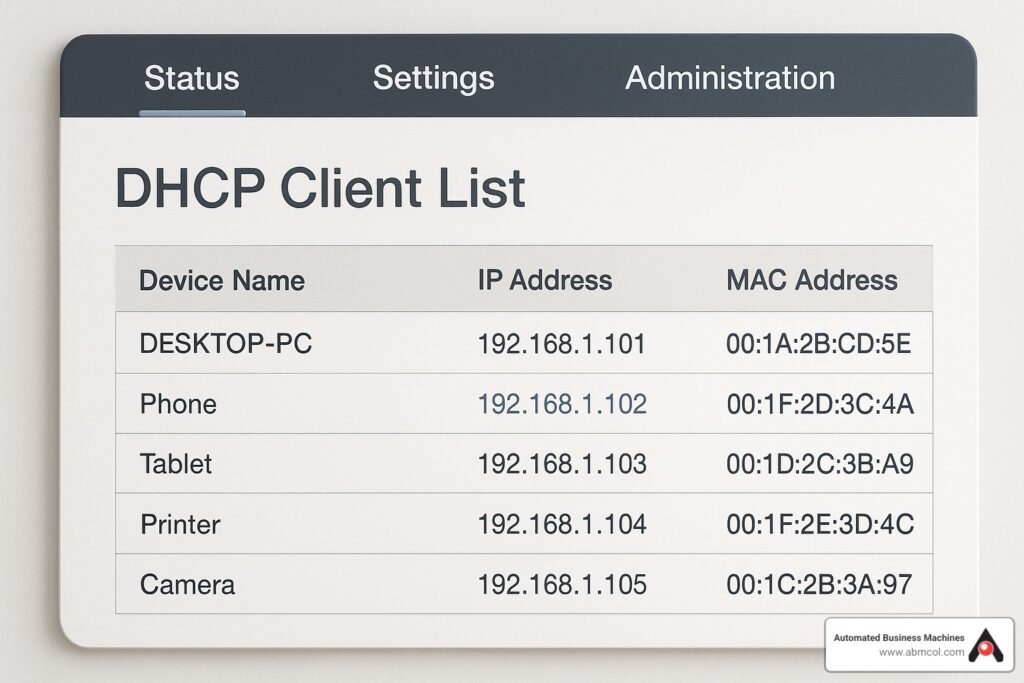
- Go to Connected Devices, DHCP Clients, Device List, or Network Map.
- Find printer by name, hostname, or MAC → note IP.
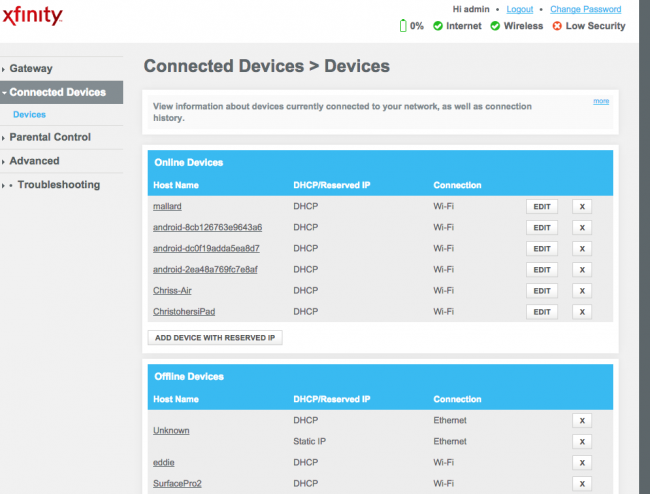
Typical router Connected Devices page — look for your printer’s name or MAC to spot its IP address.
Printer IP Address Guide: 5 Easy Ways To Find It Fast
DHCP client list example showing multiple devices with assigned IP addresses — printers often appear here.
Method 6: Advanced – Command Prompt / Terminal
- Windows: Open CMD → arp -a (lists IPs/MACs) or PowerShell: Get-Printer | Select Name, PortName.
- Mac: Terminal → arp -a or ping [printer hostname].
Method 7: Use Official Brand Apps
- HP Smart app → select printer → Network/Advanced → shows IP.
- Brother Mobile Connect or Epson iPrint → network info section.
- Canon PRINT app → device details.
Common Problems & Quick Fixes
- IP starts with 169.254.x.x → No DHCP; printer not connected properly. Restart router/printer.
- IP changes often → Set static IP via printer menu or web interface.
- Printer not listed → Confirm same network, restart everything.
Finding your printer IP address usually takes under 5 minutes with these methods. Start with printing the configuration page—it’s the most foolproof!