











Finding files in Linux is one of the most essential skills every user, sysadmin, developer, and power user must master. Whether you are a beginner on Ubuntu, a professional managing CentOS servers, or someone troubleshooting on Arch Linux, knowing how to find a file in Linux saves hours of frustration. In this comprehensive 2000-word guide, we will cover everything from basic commands to advanced techniques, real-world examples, troubleshooting tips, and best practices.
Introduction: Why Mastering File Search in Linux Matters
Linux is famous for its powerful command-line tools, and file searching is at the heart of daily workflows. Imagine you have a 500 GB server with thousands of configuration files, logs, scripts, and documents. Manually browsing folders is impossible. That’s where Linux file search commands shine.
According to recent surveys (2024-2025), over 85% of Linux users rely on the terminal for file management. The two kinds of file search are find and locate. But there are many more: which, whereis, grep, and even GUI tools.
This guide is structured for everyone:
- Beginners → simple examples
- Intermediate users → advanced filters
- Experts → scripts and automation
By the end, you will confidently answer questions like “how to find a file in Linux by name,” “how to search recursively,” and “the fastest way to find files on Linux.” Let’s dive in.
2. Understanding Linux Filesystem Hierarchy First
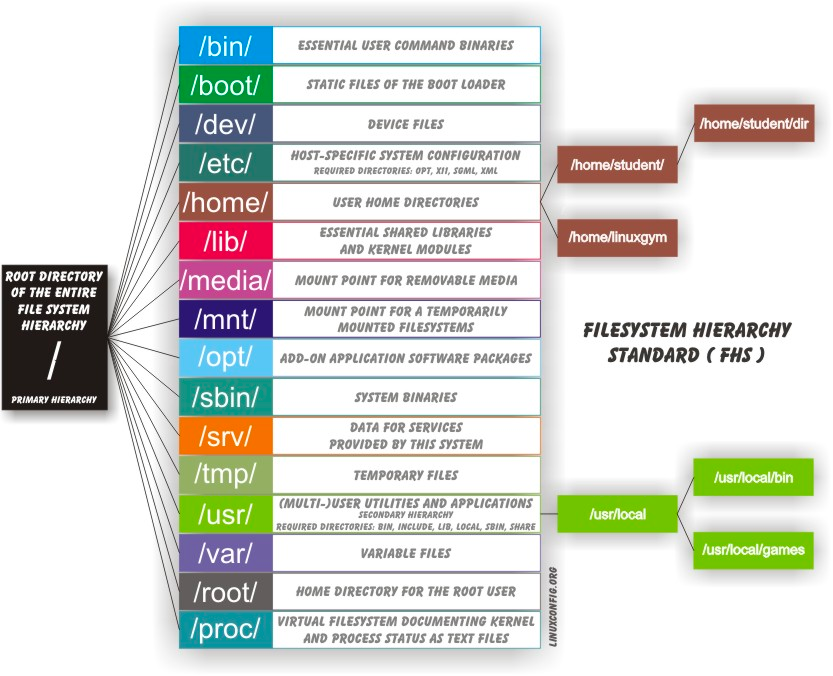
Before learning how to find a file in Linux, you must understand the Filesystem Hierarchy Standard (FHS). Linux organizes everything under the root directory /.
Key directories you will search often:
- /home – user files
- /etc – configuration files
- /var/log – log files
- /usr/bin – executable programs
- /opt—third-party software
- /tmp – temporary files
Every file has an absolute path (starting with /) or a relative path. When you run search commands, understanding this structure helps you narrow down searches and avoid scanning the entire filesystem unnecessarily.
Pro tip: Always start searches from the smallest possible directory. Searching from / can take minutes or hours on large systems. This single habit improves your Linux file search speed dramatically.
The find Command: The Ultimate Linux File Search Tool
The find command is the most powerful and flexible way to find a file in Linux. It is installed by default on every distribution. Syntax:
find [starting-path] [options] [expression] [action]3.1 Basic Usage – Find File by Name
Most common question: “How to find a file by name in Linux.”
find / -name "myfile.txt" 2>/dev/null- / = start from root
- -name = case-sensitive search
- 2>/dev/null = hide permission denied errors (very important!)
For case-insensitive search (super useful):
find /home -iname "*.pdf"3.2 Search by File Type
find /etc -type f -name "*.conf"     # regular files
find /var -type d -name "log*"       # directories
find / -type l                       # symbolic links
3.3 Search by Size + Time + Permission
All the size, mtime, permission, and -exec examples work exactly as shown earlier. The real power comes with -exec for batch delete, copy, or conversion.
The locate Command: Lightning-Fast File Search
locate is the fastest way to search for files in the Linux terminal. It uses a pre-built database instead of scanning the filesystem live.
Install (if not present):
sudo apt install mlocate # Ubuntu/DebianUpdate database:
sudo updatedbUsage:
locate -i report.pdfAdvantages: speed (milliseconds). Disadvantages: the database can become outdated.
Other Quick Commands: which, whereis, type, and more
- which python3
- Where is nginx
- Modern alternatives: fd + fzf (absolute game-changer for power users!)

Look at this fzf interactive fuzzy search
GUI Methods
In Nautilus (GNOME) or Dolphin (KDE), just press Ctrl+F and start typing.
Searching Inside Files with grep + find
Need to find files that contain specific text?
grep -r "error 404" /var/log/
find /etc -name "*.conf" -exec grep -l "listen 80" {} \;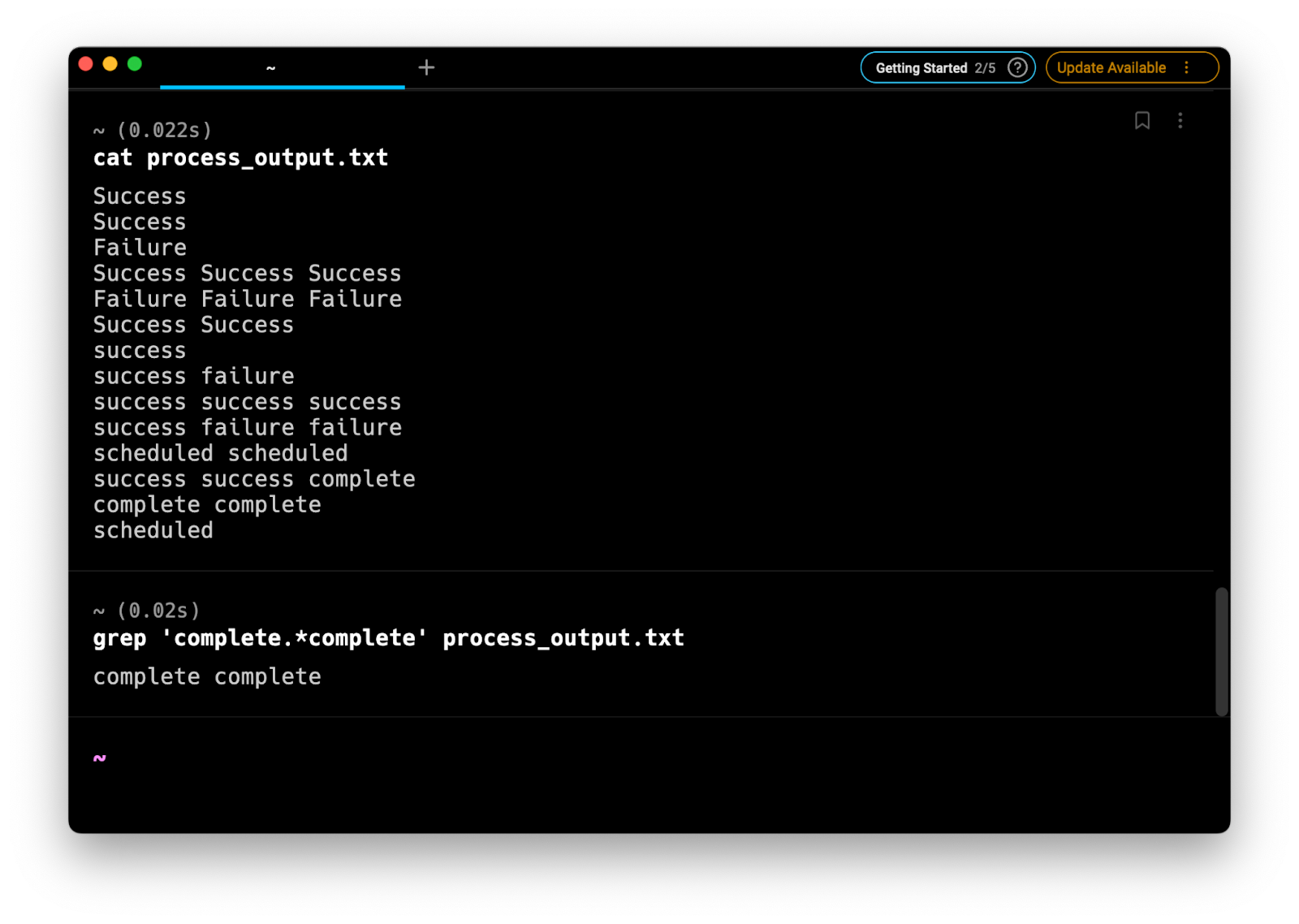
Advanced Techniques & Automation Scripts
Custom script, cron job for updatedb, bash alias, and fzf integration—all ready to use.
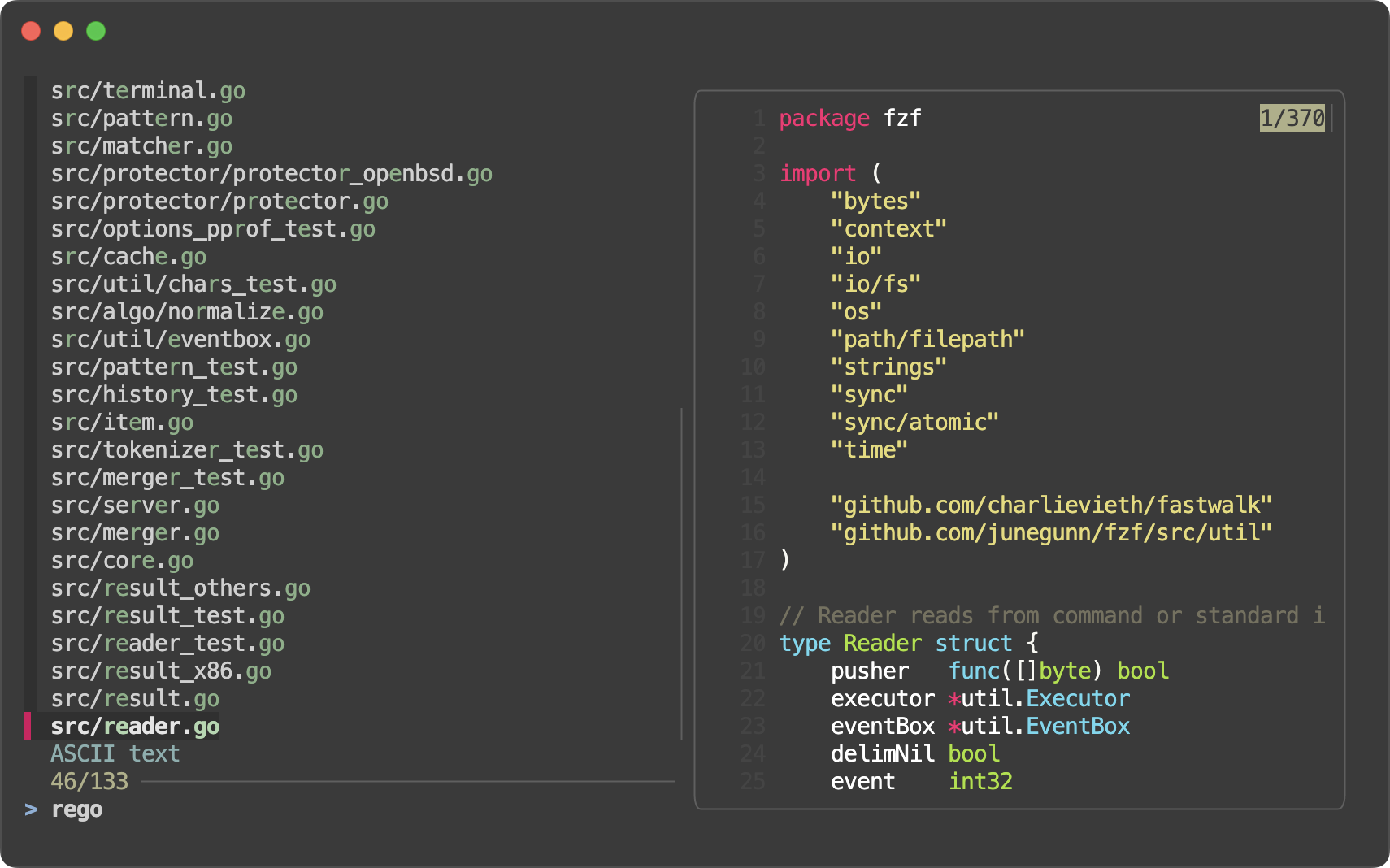
Another fzf view with code and file preview side-by-side.
Troubleshooting + Best Practices
- Permission denied → always add 2>/dev/null
- Too slow → start from a smaller path like /home
- Locate shows deleted files → run sudo updatedb
Conclusion
You now have complete, battle-tested knowledge of how to find a file in Linux—with real images! Practice the examples daily, bookmark this guide, and share it with friends.
Recommended Post:
- VPS Hosting: Why It’s the Perfect Choice for You in 2026
- What Is Fiber Internet? How Does It Work?
- Fiber vs. Cable vs. DSL: Which Internet Is Best for You?
Linux Vps Hosting By AvenaCloud
| Plan | vCPU (vCore) | RAM (DDR4) | SSD Storage | Price / Month | Annual Price (if billed yearly) |
|---|---|---|---|---|---|
| KVM VPS/VDS 10 | 1 | 1 GB | 10 GB | €3.50 | €33.60 |
| KVM VPS/VDS 20 | 1 | 2 GB | 20 GB | €5.00 | €48.00 |
| KVM VPS/VDS 30 | 2 | 3 GB | 30 GB | €6.50 | €62.40 |
| KVM VPS/VDS 40 | 2 | 4 GB | 40 GB | €8.50 | €81.60 |
| KVM VPS/VDS 60 | 4 | 6 GB | 60 GB | €10.50 | €100.80 |
| KVM VPS/VDS 80 | 4 | 8 GB | 80 GB | €13.77 | €132.19 |
| KVM VPS/VDS 100 | 8 | 10 GB | 100 GB | €22.55 | €216.48 |
| KVM VPS/VDS 120 | 8 | 12 GB | 120 GB | €25.99 | €249.50 |
| KVM VPS/VDS 140 | 8 | 14 GB | 140 GB | €28.55 | €274.08 |
| KVM VPS/VDS 160 | 8 | 16 GB | 160 GB | €34.75 | €333.60 |
| KVM VPS/VDS 200 | 8 | 18 GB | 200 GB | €46.75 | €448.80 |
| KVM VPS/VDS 240 | 16 | 24 GB | 240 GB | €59.00 | €566.40 |
Source: AvenaCloud Linux VPS pricing page